Workshop6 steps
Sending extra work for approval
Mechanics often find a new problem while they work. In Junto they report it from the phone, you put a price on it and text the customer a link. The customer says yes or no to each item on their phone, and the answer shows on the order straight away.
- Owner
- Manager
- Receptionist
Steps
Step 1: The mechanic reports a finding
Under "My jobs" the mechanic clicks "Found another problem", picks or types what they found, takes a photo if useful and clicks "Send to reception". A new line appears on the order marked "Found by the mechanic" and "Waiting for approval".
Step 2: Open the work order
The order shows a yellow banner "Extra work is waiting for the customer's approval". While there is no price, it asks: "Set a price on the work the mechanic found before sending."
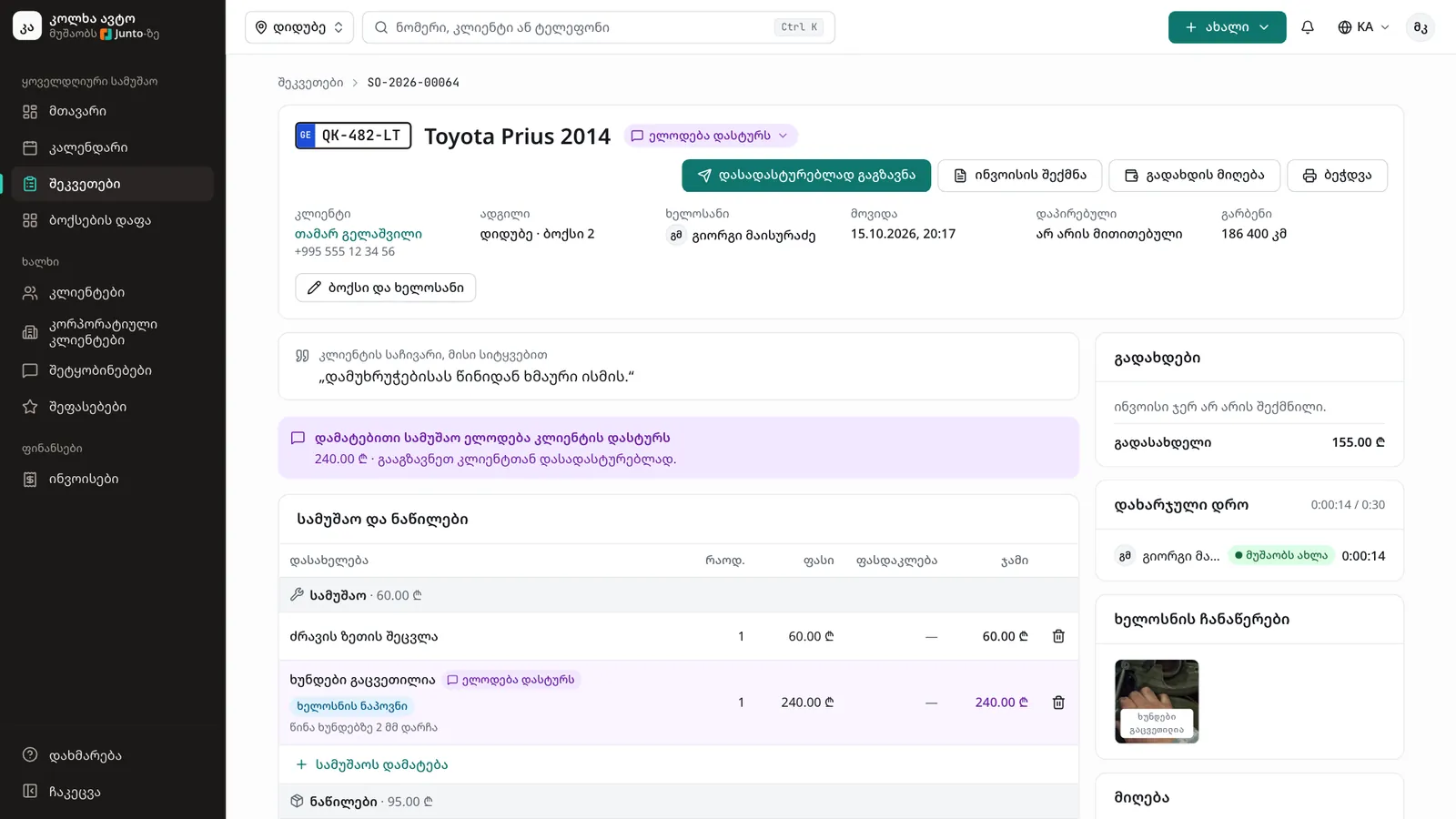
Step 3: Set the price
In the "Price" column of the found line, type the amount and press Enter or click elsewhere. "Saved" appears. If a part is needed too, add it with "Add part" and tick "Needs the customer's approval".
Step 4: Click "Send for approval"
The button is on the order's top card. The customer gets an SMS with the total and a link, the order's status becomes "Waiting for approval", and you see "Sent to the customer".
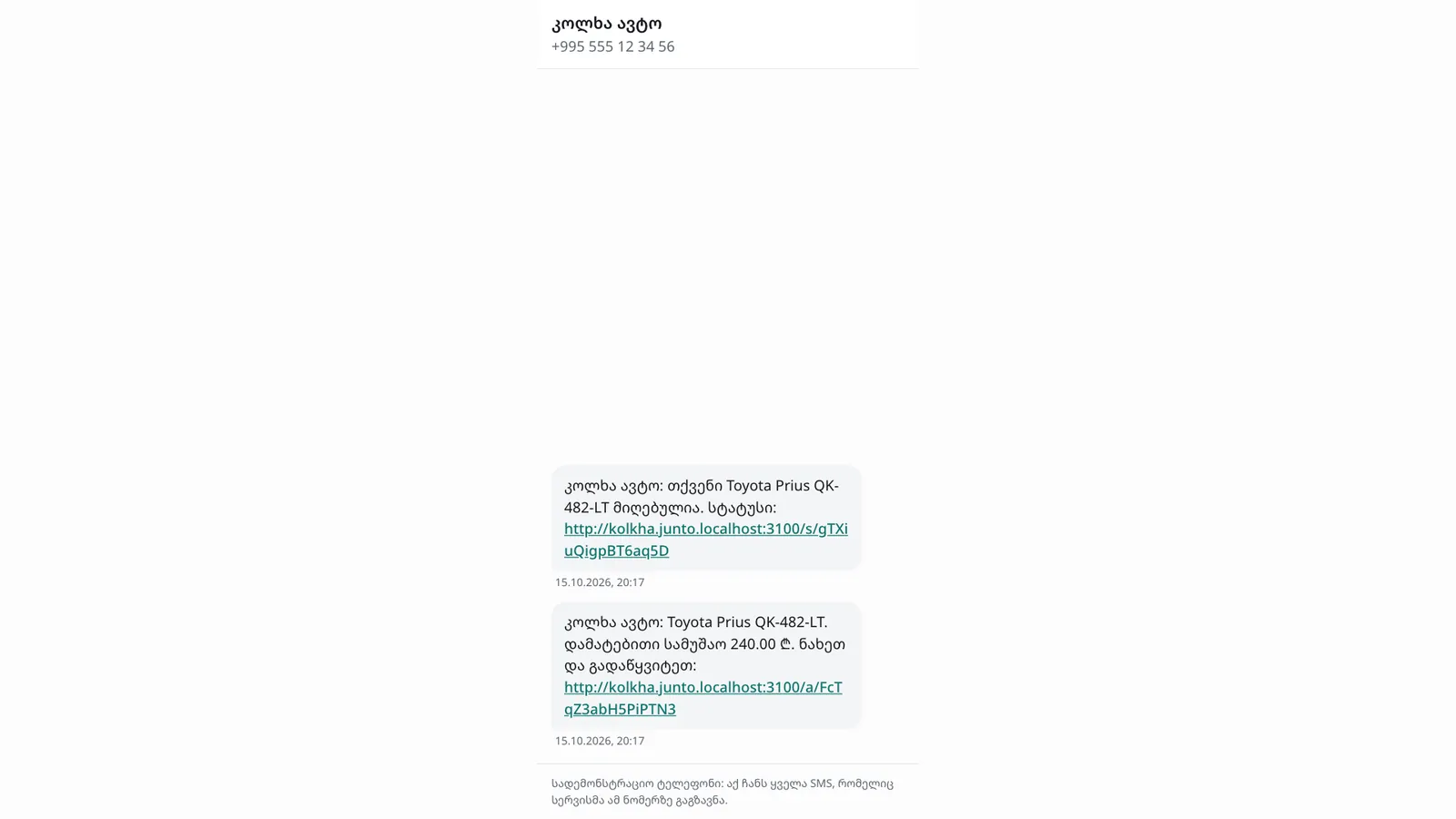
Step 5: Follow the answer
The yellow banner shows when the link was sent and when the customer opened it, for example "Sent 12:40 · seen by the customer 12:45". The same is written in the order's "History".
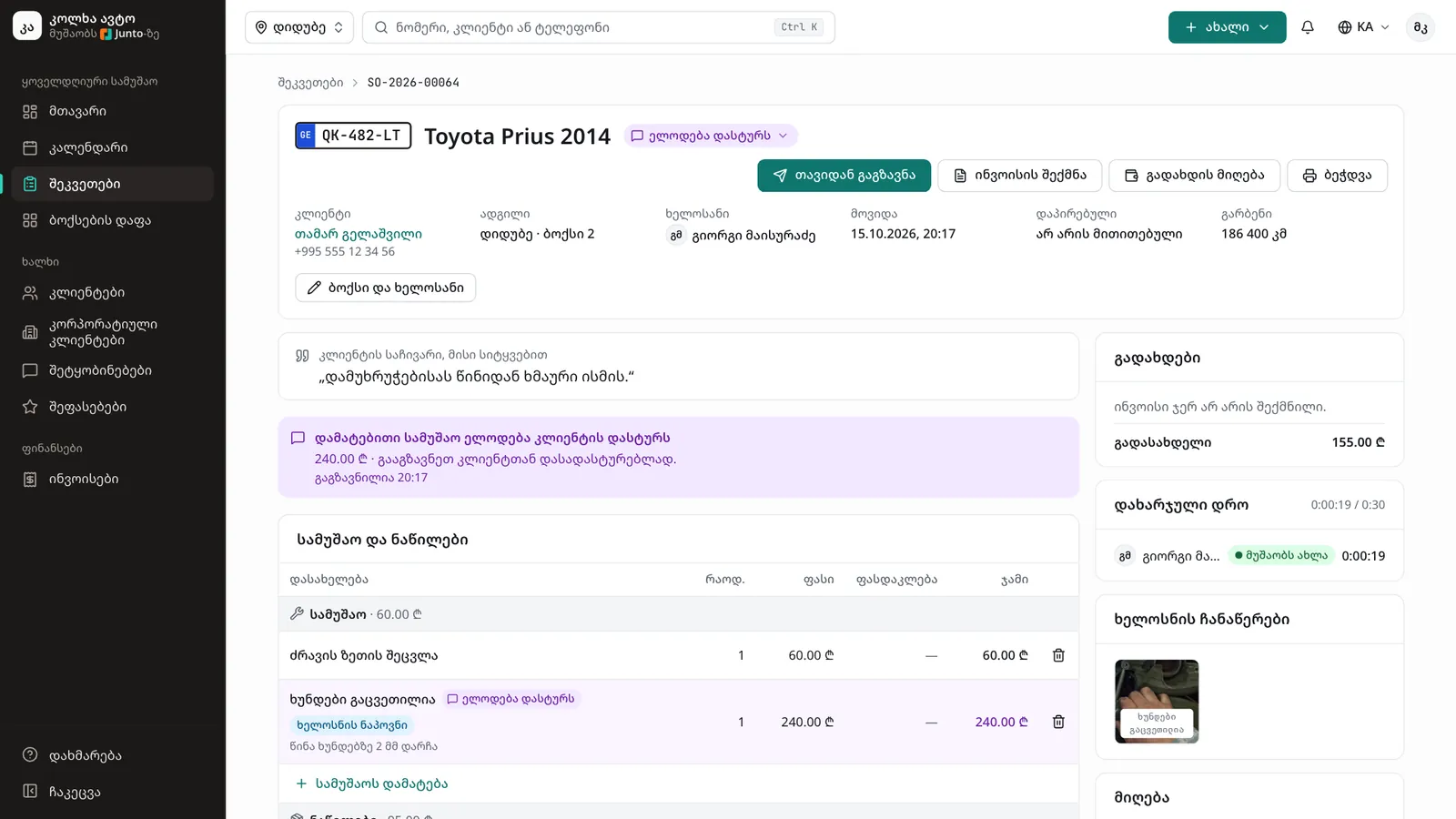
Step 6: After the answer
Approved lines join the total; declined lines stay struck through and marked "Declined by the customer". The order goes back to "In progress" and the mechanic carries on. If the customer does not answer, click "Send again".
Tips
- The button stays disabled while no line is waiting for approval or a line has no price.
- The link works for three days. "Send again" sends a new link and the old one stops working.
- The customer needs a phone number on file, otherwise the SMS cannot be sent.
- Only approved work goes on the invoice. A declined line never does.
- You can see what happened to the SMS under "Messages".
Related guides
- Customer approval on the phoneWhat the customer sees from the SMS link: the problem found with a photo and price, "Approve" or "Decline" on each item, and the new total.
- Labour and parts on a work orderHow to add labour and parts to a work order with a price, a cost and, when needed, the customer's approval.
- The SMS logWhere to see every SMS the shop sent to customers, whether it arrived, and how to send again one that failed.
- The Junto apps for car owners and mechanicsWhat the car owner app does (booking, order status, approval, payment, garage) and what the mechanic app does (jobs, timer, check-in, hours).
- Invoice and taking paymentHow to create an invoice from a work order, take payment in cash, by card or by bank transfer, and print the invoice.
- Corporate clients and their portalHow to add a company with a fleet, give its people a portal and confirm their requests to book vehicles in.