Customers7 steps
Customer approval on the phone
When a mechanic finds an extra problem, the customer gets a link by SMS. On the phone they see what was found, a photo and the price, and answer each item with one tap. No app or account is needed, and the answer shows on the work order at once.
- Car owner
- Owner
- Manager
- Receptionist
Steps
Step 1: The customer opens the link from the SMS
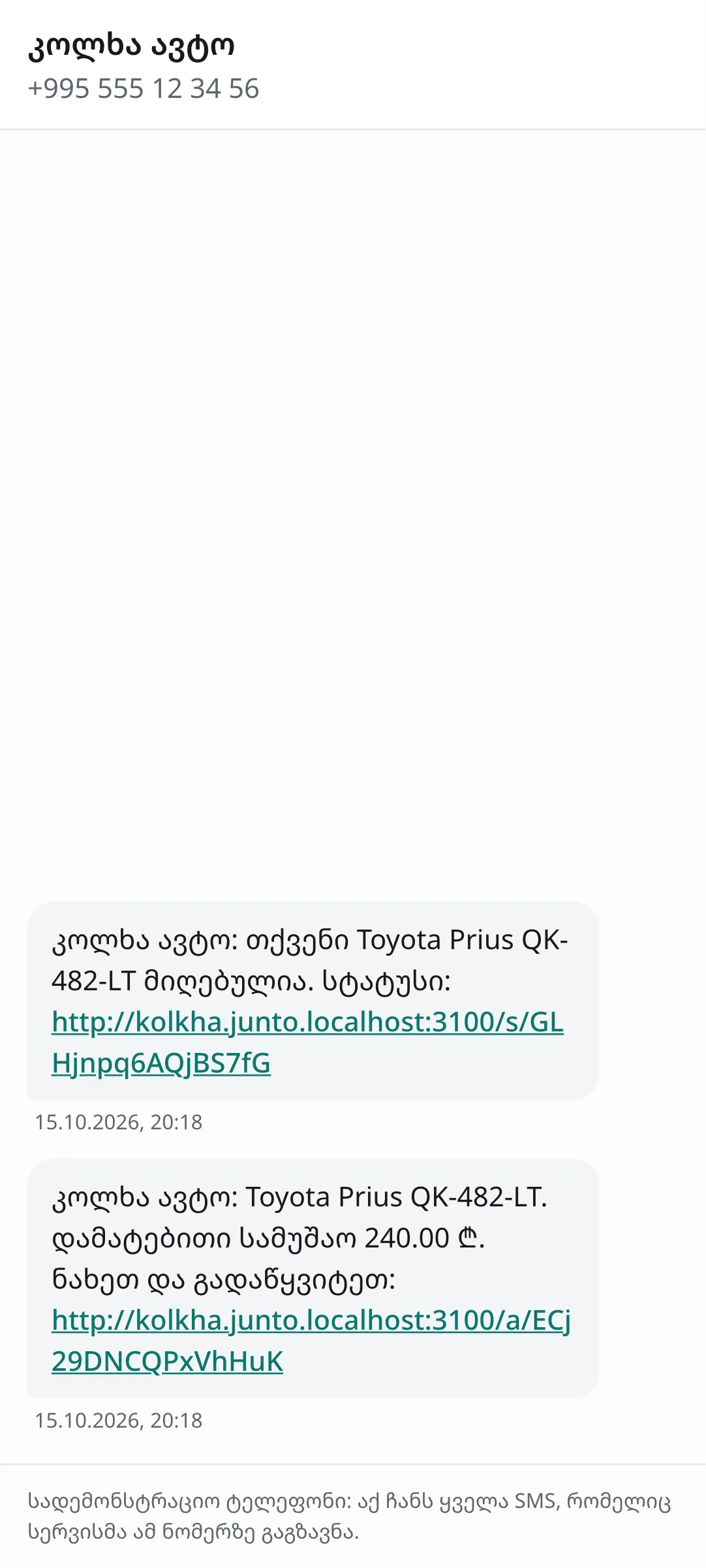
After you click "Send for approval" on the work order, the customer gets an SMS with the shop name, the car, the amount and a link. The link opens in the phone browser. The top shows the shop name, the plate and the car model.
Step 2: What the mechanic found
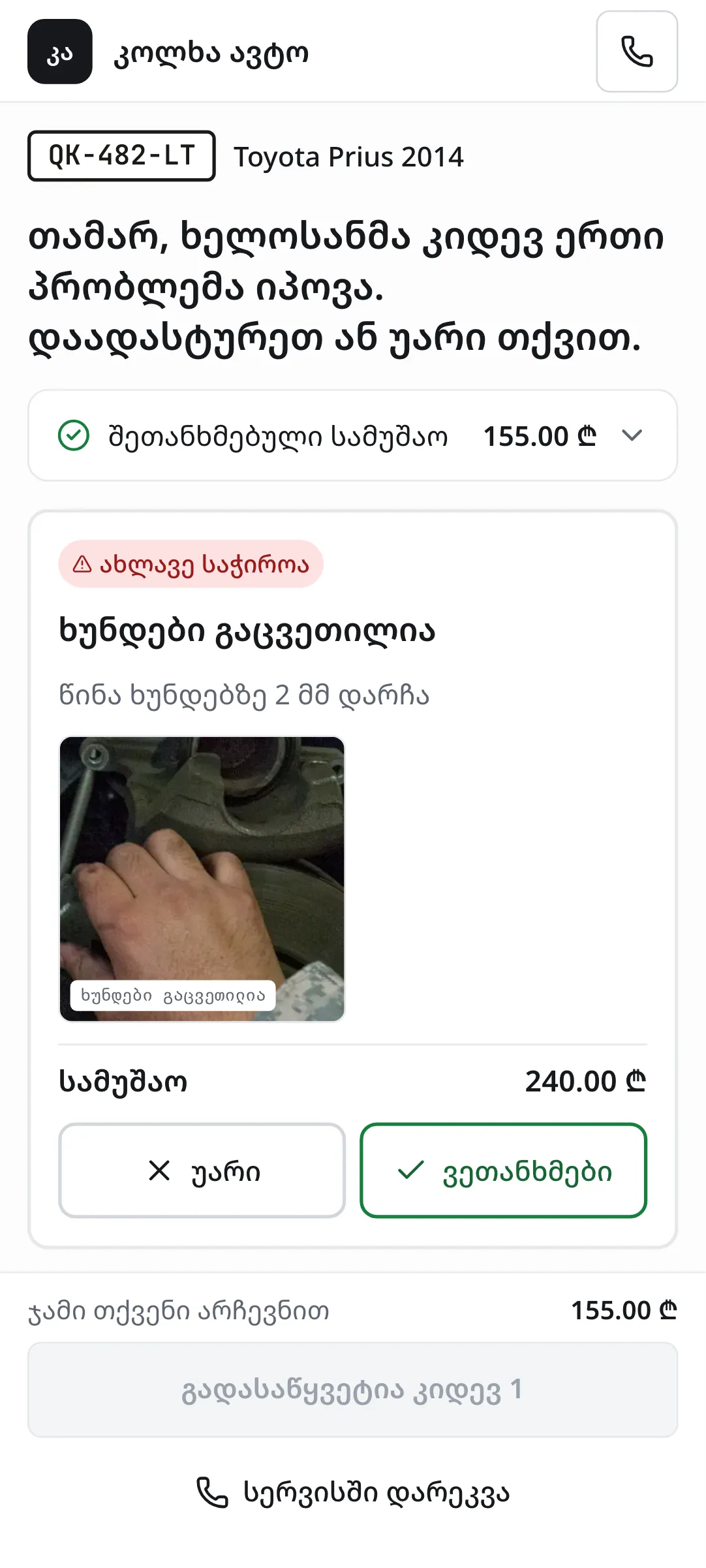
The page heading reads, for example, "Tamar, the mechanic found one more issue. Approve or decline it." Each card shows the labour or part name, a description, a photo (if the mechanic took one), an urgency badge "Needed now" or "Needed soon", the type ("Labour" or "Part") and the price.
Step 3: Work already agreed
If the order already has approved work, it shows as a bar "Agreed work" with its total. A tap opens the list, so the customer sees what was agreed at check-in.
Step 4: Answer each item
Each card has two buttons: "Decline" and "Approve". The bottom bar "Total with your choices" updates at once, so the customer sees what they will pay.
Step 5: Confirm the choices
Until every item is answered, the bottom button reads "N left to decide" and does nothing. Once everything is chosen it becomes "Confirm my choices". Below it is "Call the shop" in case the customer has a question.
Step 6: The result page
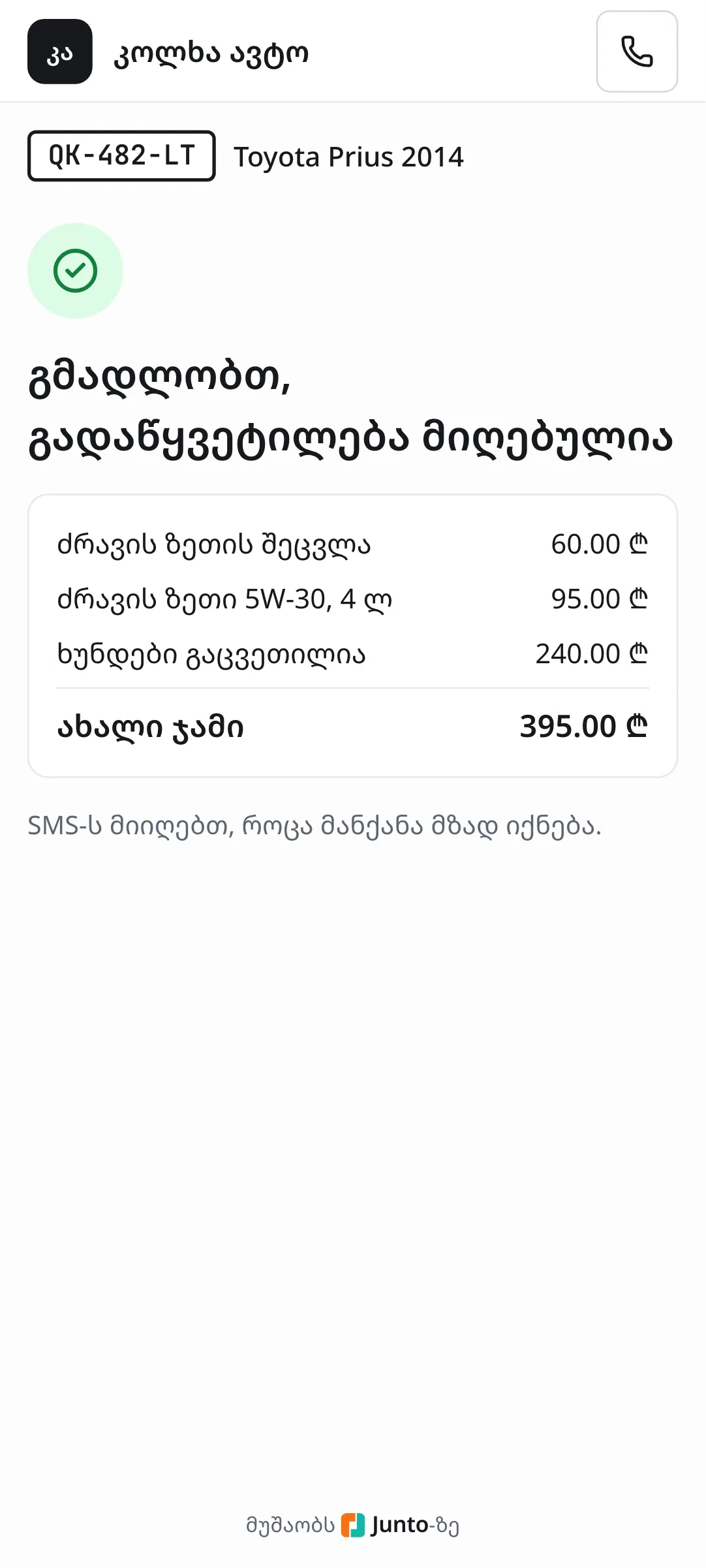
After confirming, the page shows "Thank you, your decision is recorded": approved items with prices, declined ones crossed out, and the "New total". If the order has a promised time, "Expected to be finished:" shows it. Opening the link again shows the same result.
Step 7: The answer in the shop
Staff get a bell notification "Customer answered:" with the plate. The order "History" records "Customer approved: …" or "Customer declined: …", the status goes from "Waiting for approval" back to "In progress", and the mechanic carries on. A declined line is marked "Declined by the customer".
Tips
- An approval link works for 3 days. After that the customer sees "This link has expired. The shop will contact you, or you can call." If needed, click "Send again" on the work order.
- When the customer opens the link, the order shows "seen by the customer" with the time. If they do not answer for a long time, call them.
- The answer is sent once. If the customer changes their mind, they call the shop and a staff member changes the line on the work order.
- Only approved lines go on the invoice. Declined work stays on the order but does not count in the total.
- For a corporate client's order the same form appears in the fleet portal, where the fleet manager gives the approval.
Related guides
- Sending extra work for approvalHow to price a problem the mechanic found and send it to the customer by SMS for approval.
- Labour and parts on a work orderHow to add labour and parts to a work order with a price, a cost and, when needed, the customer's approval.
- Handing the car backHow to mark a car ready, take payment and hand it back to the customer, or leave it as a debt.
- Online payment by linkHow a customer pays by card from the SMS link before coming to collect the car, and where the shop sees it.
- The SMS logWhere to see every SMS the shop sent to customers, whether it arrived, and how to send again one that failed.