Money8 steps
Invoice and taking payment
An invoice is built from the work order's approved lines, so nothing is typed twice. You record a payment in one dialog, a part payment works out what is still owed, and the invoice prints on one A4 page.
- Owner
- Manager
- Receptionist
Steps
Step 1: Open the work order
In the left menu choose "Work orders" and open the order of a car that is ready. At the top, next to the status, you see the payment state and the "left" amount.
Step 2: Click "Create invoice"
In the order's top bar click "Create invoice". The invoice is built from approved lines only and its page opens at once. If the invoice already exists, its number shows in the same place and opens it.
Step 3: Check the invoice
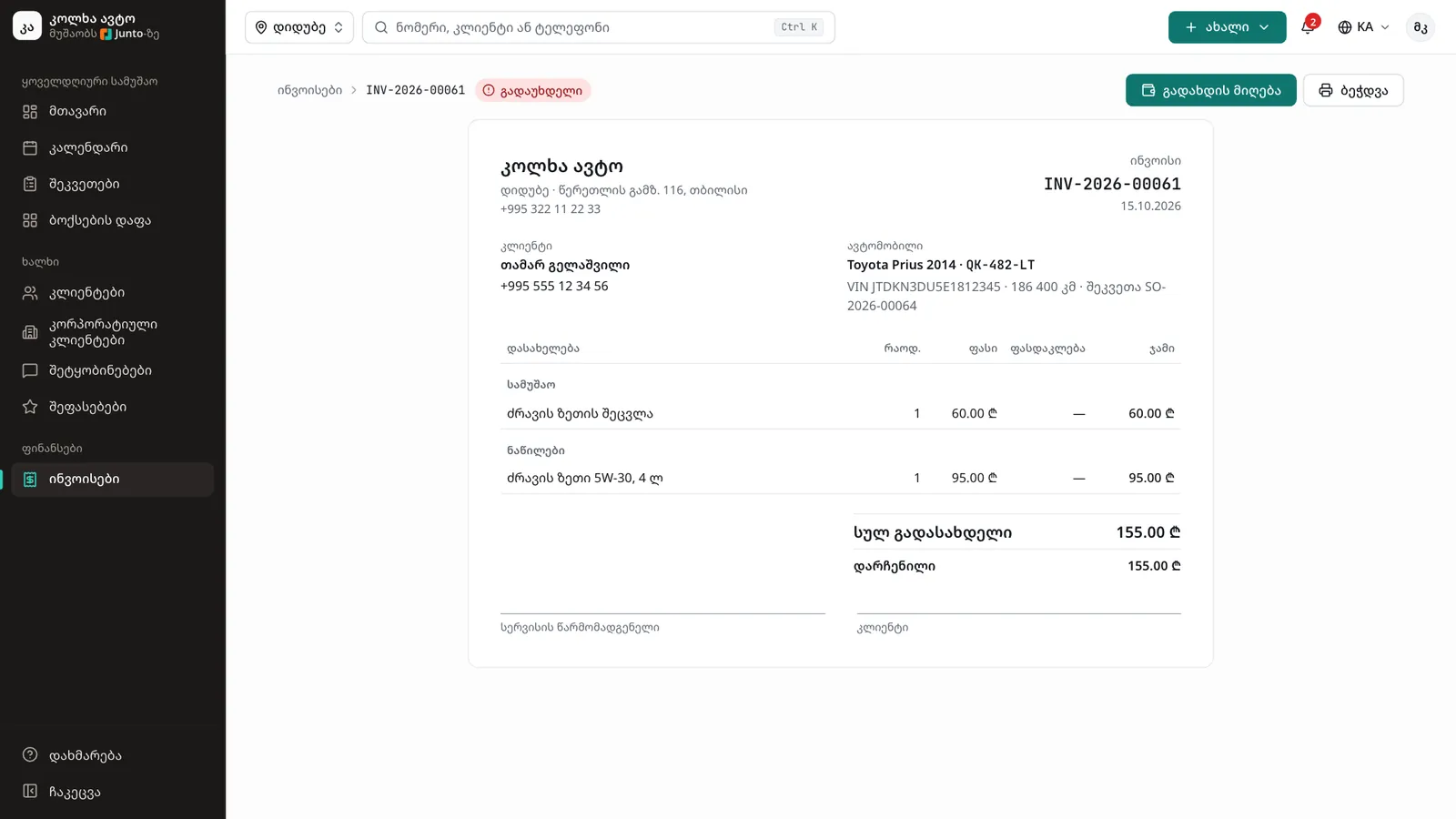
The invoice shows the shop and branch, the customer, the vehicle, VIN, mileage and order number. Lines are grouped under "Labour" and "Parts" with "Qty", "Price", "Discount" and "Total". Below are "Total to pay" and "Balance".
Step 4: Click "Take payment"
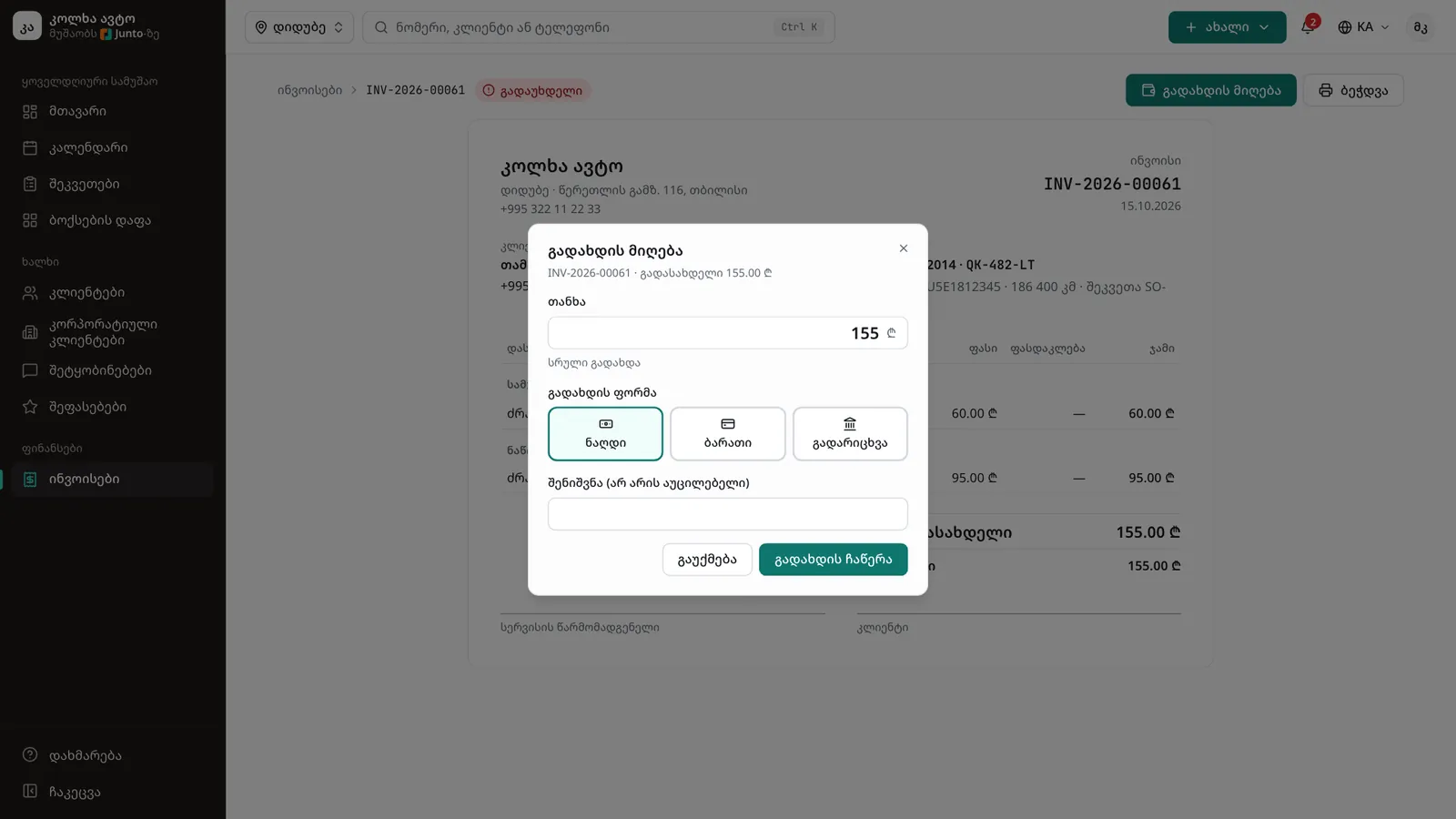
Above the invoice click "Take payment". In the dialog the "Amount" is already filled with the full balance. For a part payment type a smaller amount: "Still to pay afterwards" appears below.
Step 5: Choose the payment method
Under "Payment method" choose "Cash", "Card" or "Bank transfer". Optionally fill in "Note (optional)" and click "Record payment".
Step 6: Check the result
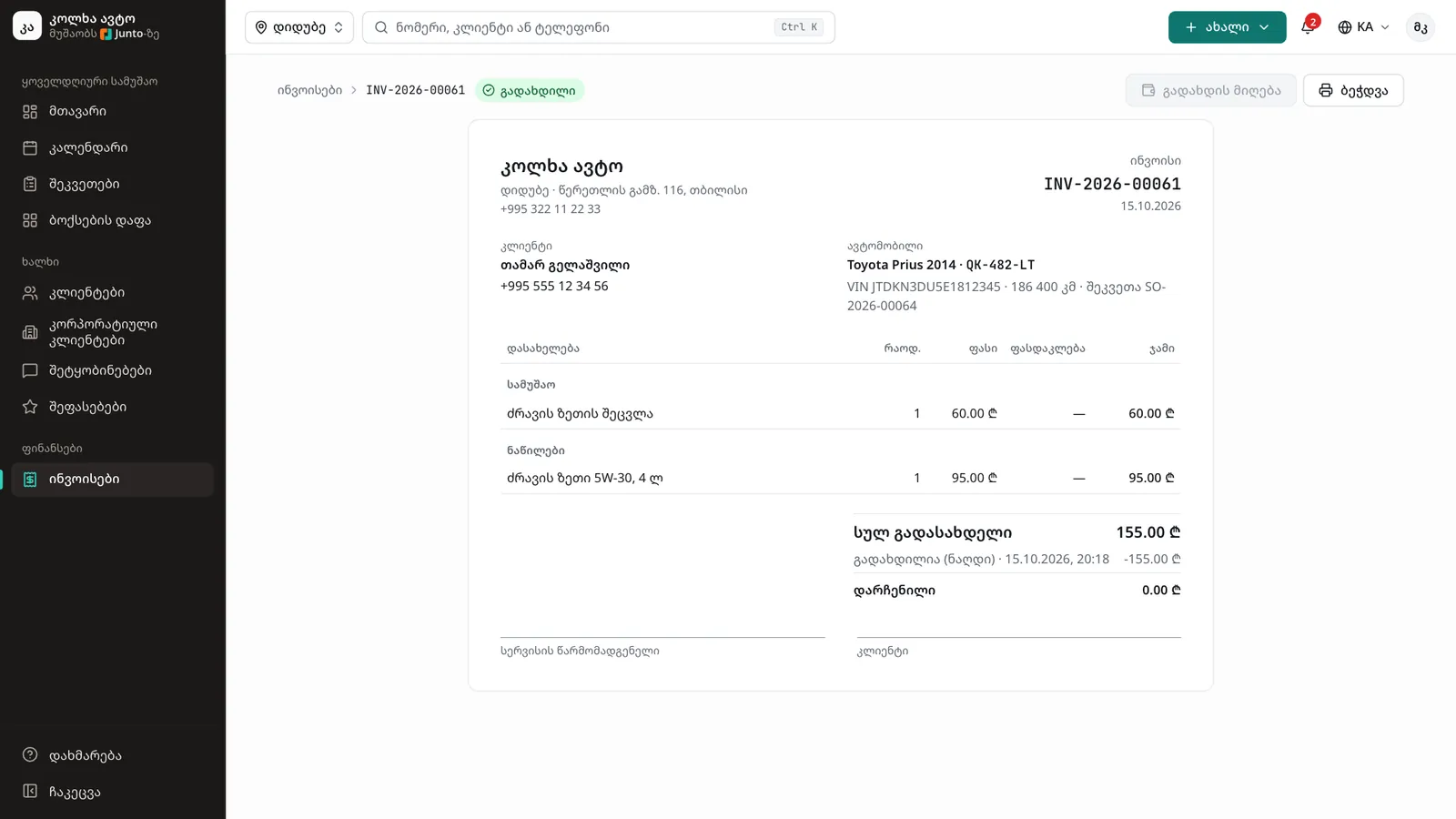
A message shows "Received … Paid in full." or "Received … … left." If you recorded it by mistake, click "Undo" in that message. The invoice lists the payment as "Paid (Cash)" and the status changes to "Unpaid", "Partly paid" or "Paid".
Step 7: Print the invoice
Click "Print". Only the invoice prints, without the app menu, on one A4 page, with signature lines "For the shop" and "Customer". For a PDF file, choose to save as PDF instead of a printer in the print dialog.
Step 8: All invoices in one list
"Invoices" in the left menu lists every invoice: number, date, customer, vehicle, total, paid and balance. Search with "Number, customer or plate" or filter by status.
Tips
- You can also take payment straight from the work order with "Take payment": if there is no invoice yet, it is created for you.
- If the order changed after the invoice was issued and nothing is paid yet, the invoice shows "Update from order". Click it so the invoice matches the new lines.
- "Create invoice" stays disabled until the order has at least one approved line.
- The amount cannot be more than what is owed. When a customer pays two ways (for example part cash, part card), record two separate payments.
- Mechanics never see prices or invoices.
Related guides
- Online payment by linkHow a customer pays by card from the SMS link before coming to collect the car, and where the shop sees it.
- Handing the car backHow to mark a car ready, take payment and hand it back to the customer, or leave it as a debt.
- Labour and parts on a work orderHow to add labour and parts to a work order with a price, a cost and, when needed, the customer's approval.
- Reports and the profit reportHow to see revenue, popular services, mechanic results and profit for any period, and how to download them as a CSV file.
- Customer and car historyHow to see all of a customer's visits, what they spent and what they owe, and a car's service history, photos and mileage.