Mobile apps7 steps
The Junto apps for car owners and mechanics
Junto has two apps. The car owner app is one app for every shop: you sign in with your mobile number and an SMS code. In the mechanic app a staff member signs in with the same email and password as on app.junto.ge; it shows only their own jobs, without prices.
- Car owner
- Mechanic
Steps
Step 1: Owner app: find a shop and book
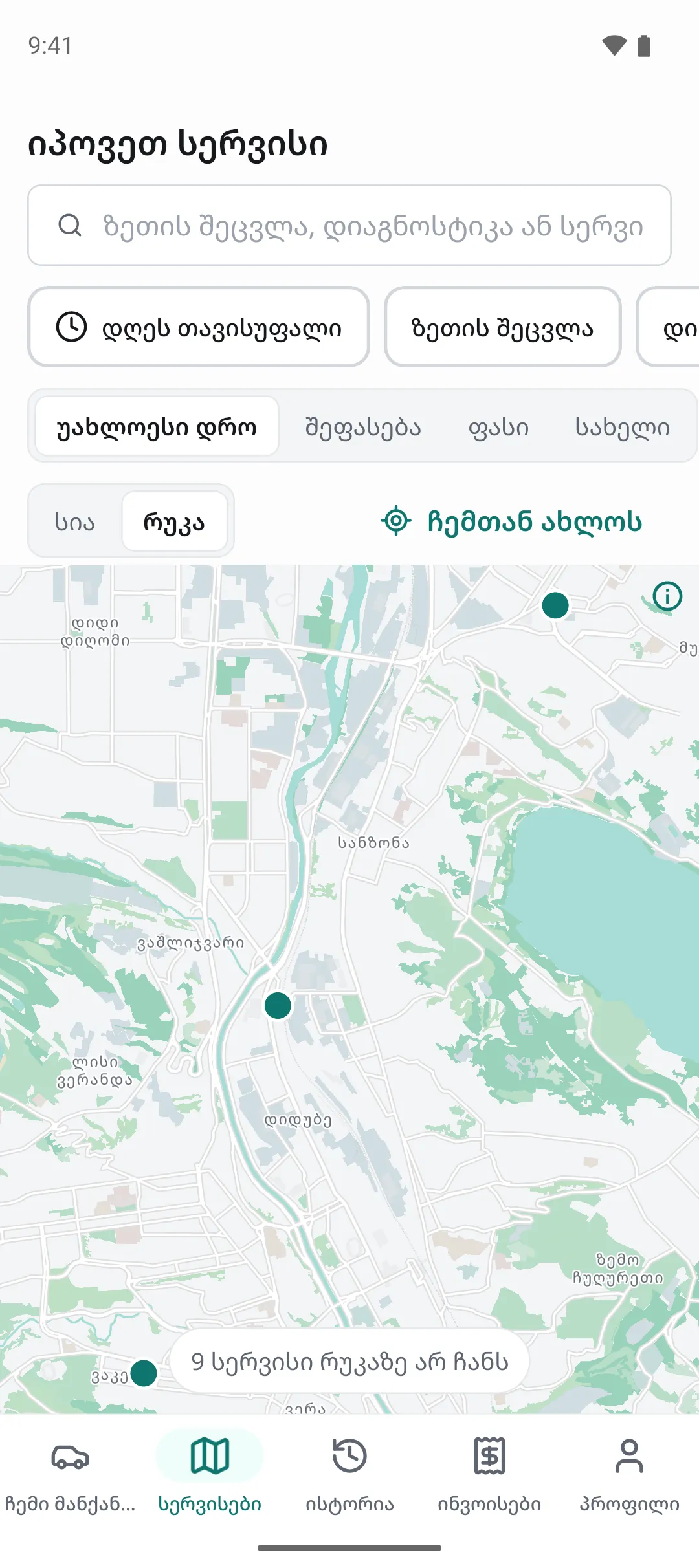
Open the "Services" tab and choose "List" or "Map"; "Near me" shows the nearest shops. Open a shop and tap "Book a visit". Choose what you need, the car and a time, then tap "Confirm booking". The first time you confirm your number with an SMS code.
Step 2: Owner app: the order, approval and payment
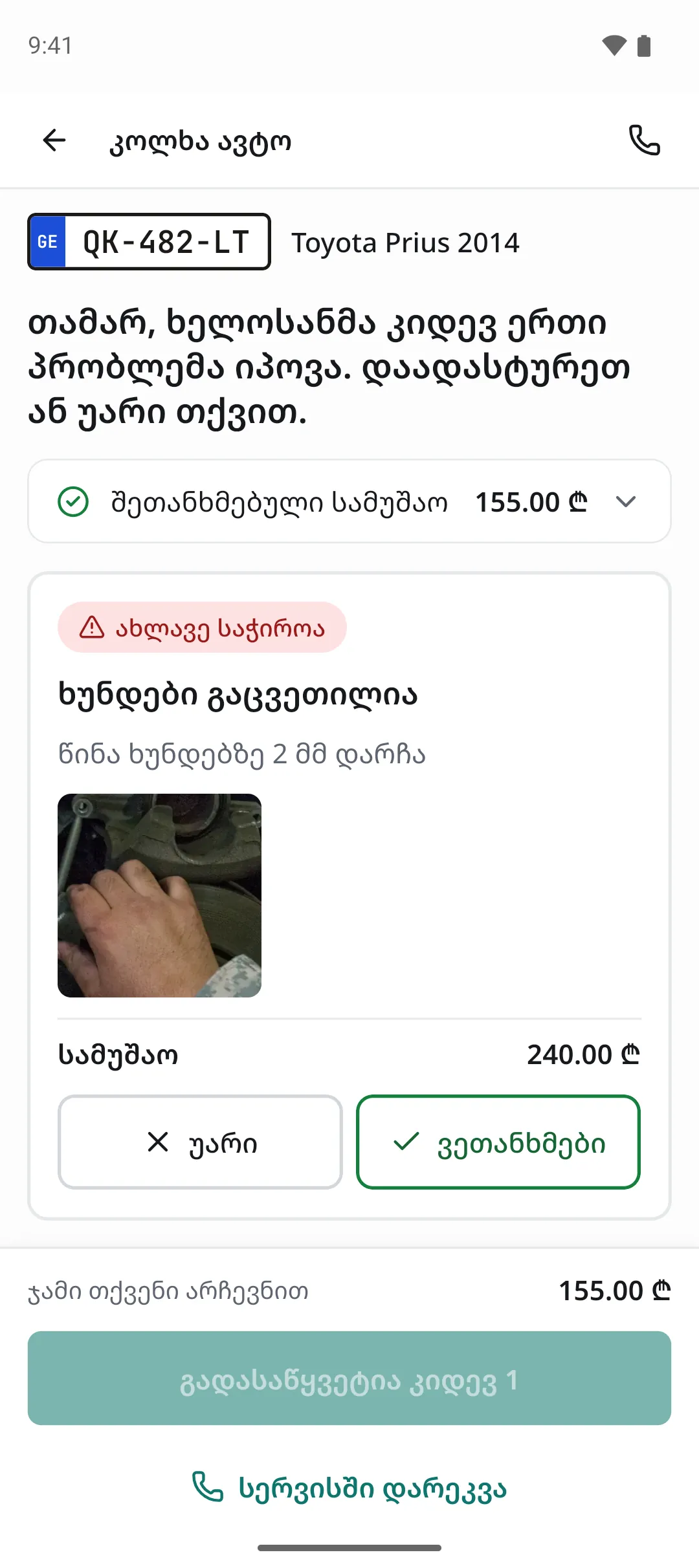
While the car is at the shop, tap "View status" in the "My cars" tab: you see what is being done and when it will be ready. If the mechanic found another problem, tap "See the work and answer", choose "Approve" or "Decline" on each line and tap "Confirm my choices". At the end "Pay online" lets you pay by card.
Step 3: Owner app: garage and VIN history
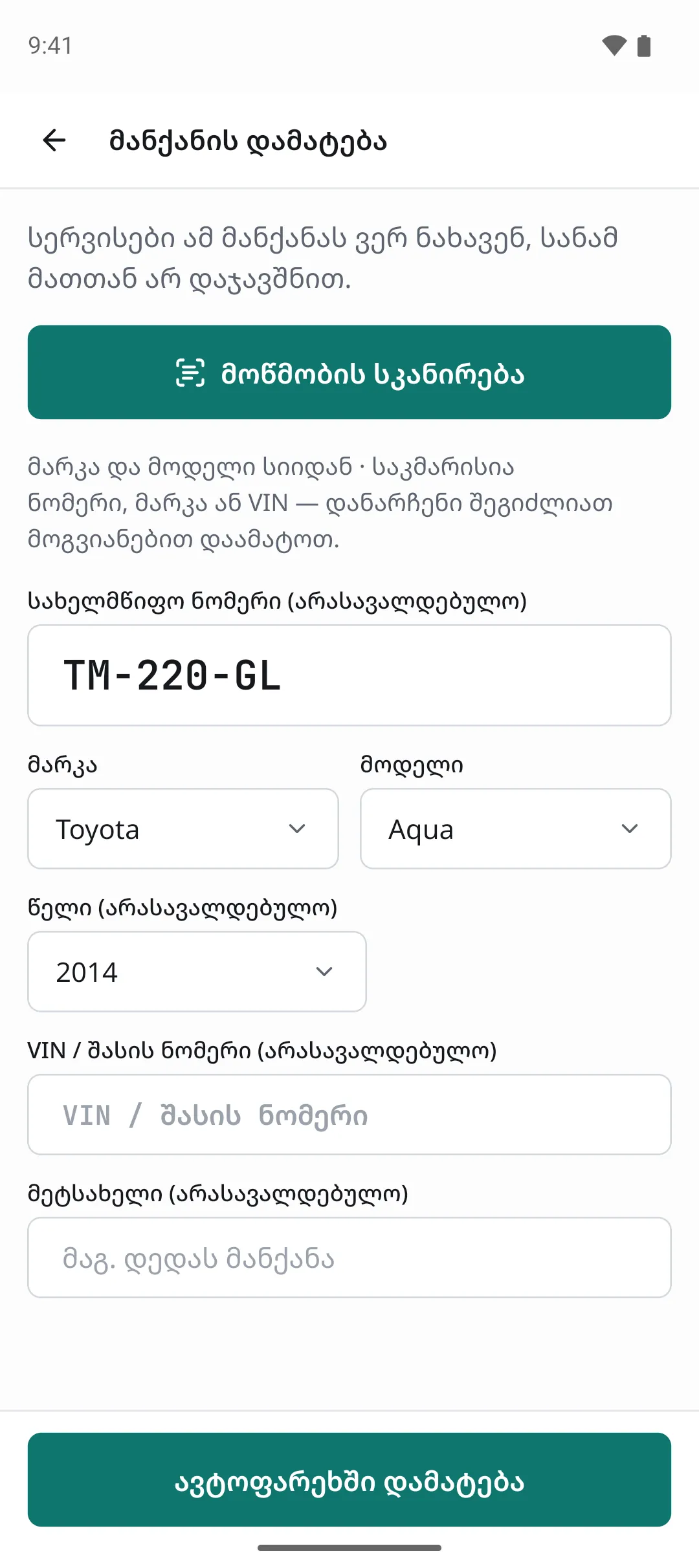
In the "My cars" tab tap "Add a car", then "Scan the registration card": the plate, make, model, year and VIN fill themselves in. Check them and tap "Add to my garage". Before buying a car, "Check by VIN" shows for free how often it was serviced at Junto shops; the full history is paid.
Step 4: Mechanic app: my jobs and the timer
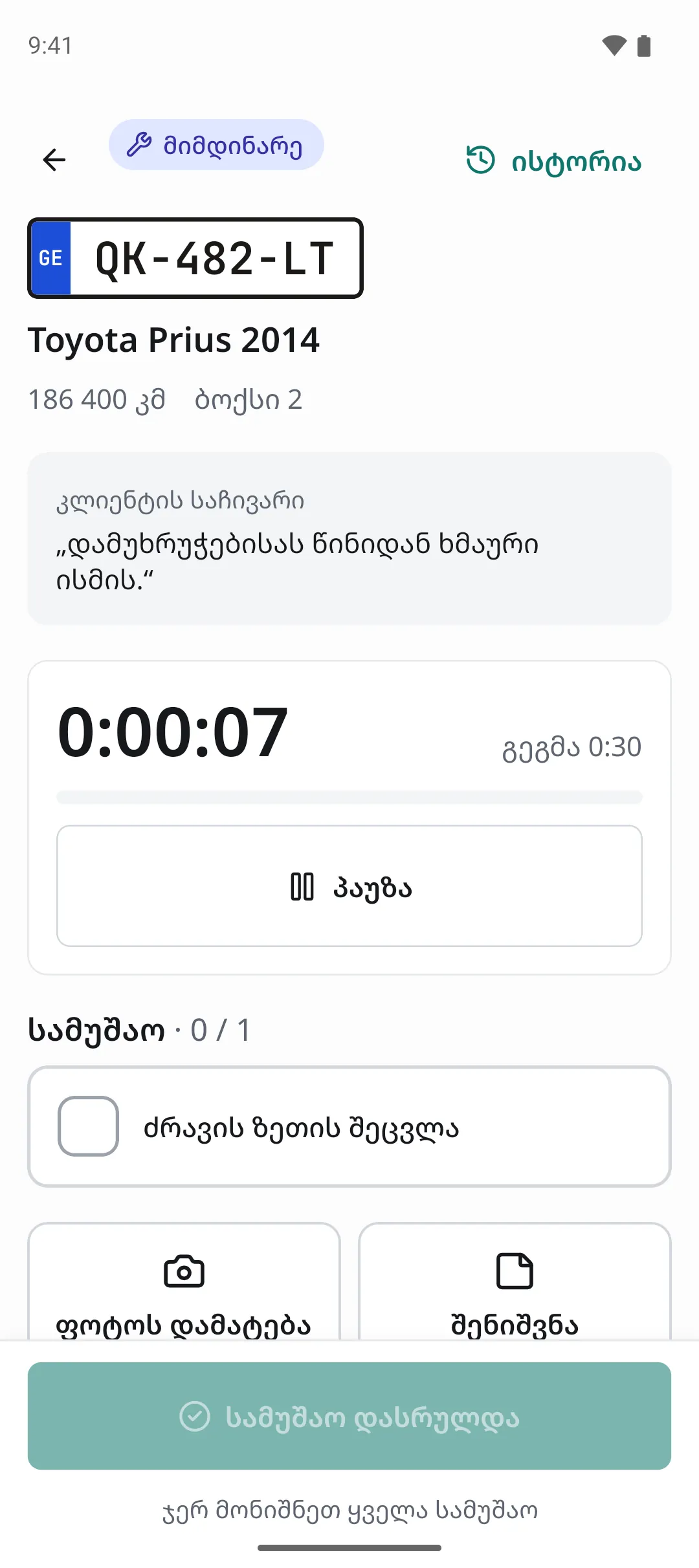
The "Jobs" tab shows "Working on now", "Next", "Waiting" and "Done today". Open a job and tap "Start": the timer counts by the server's clock. Tap each piece of work as you finish it, tap "Pause" for a break, and "Job finished" at the end.
Step 5: Mechanic app: report another problem
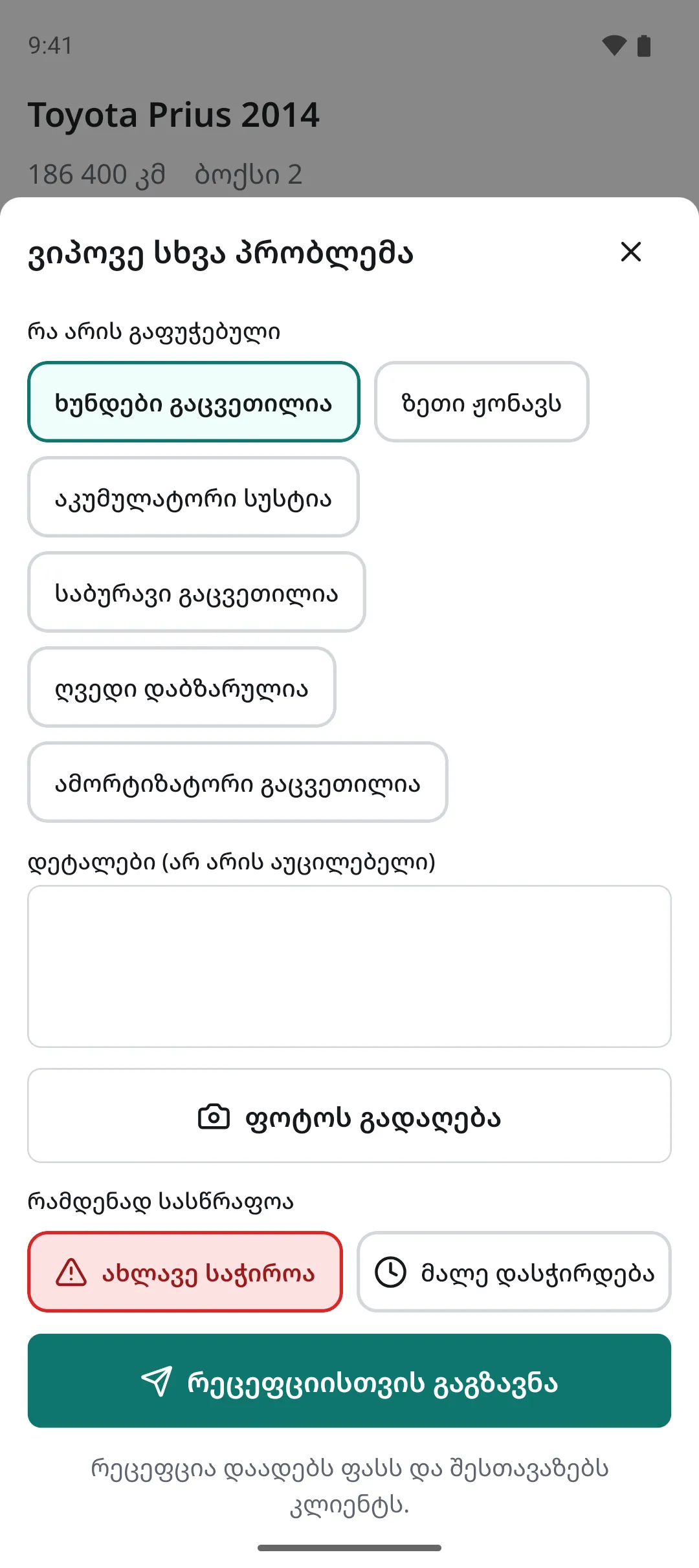
If you find something else wrong with the car, tap "Found another problem". Pick a ready-made option or type it briefly, tap "Take a photo", choose "Needed now" or "Needed soon" and tap "Send to reception". Reception prices it and sends it to the customer for approval.
Step 6: Mechanic app: check a car in from the phone
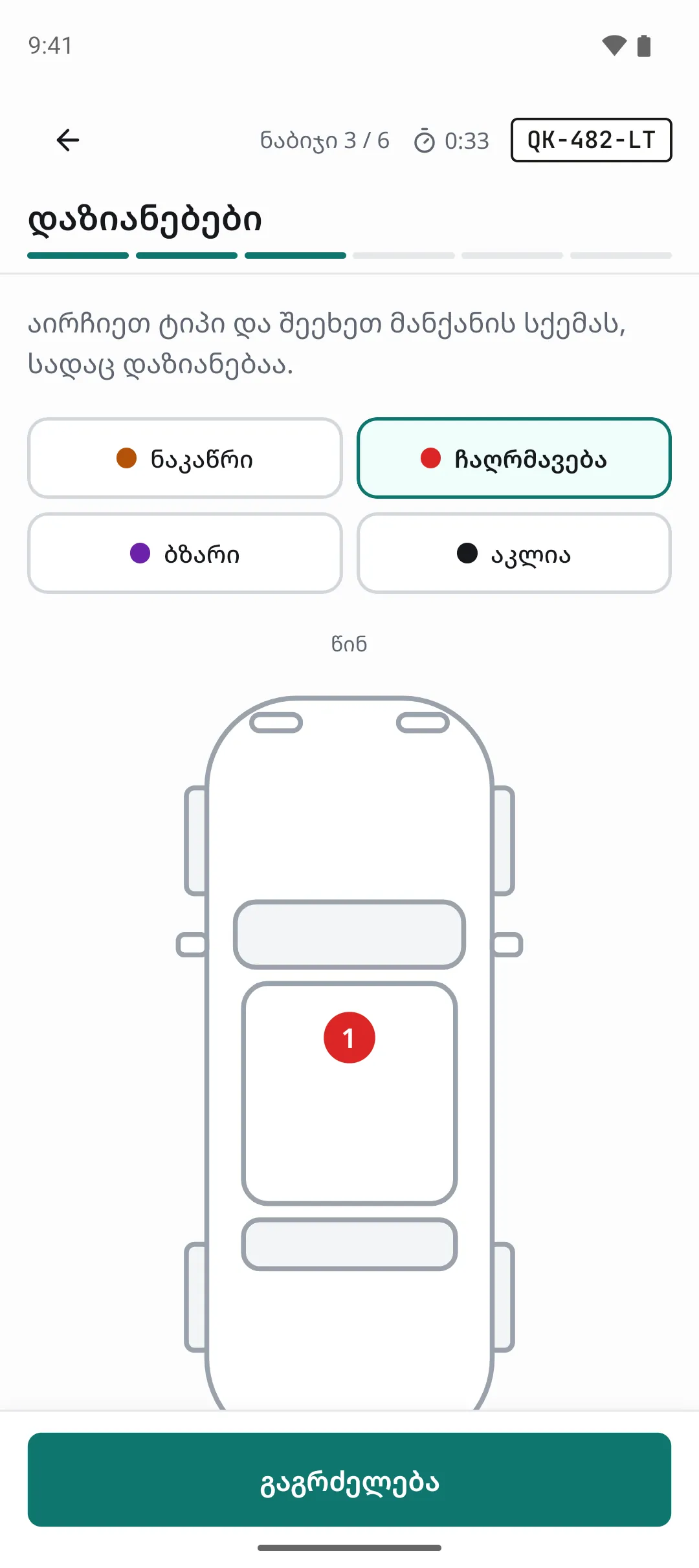
In the "Check-in" tab pick the car from "Today's bookings", search "Without a booking", or tap "New car" and scan the certificate. Go through the steps: mileage and fuel, photos, damage, items and warning lights, the customer's complaint and the signature. Tap "Finish check-in".
Step 7: Mechanic app: my hours
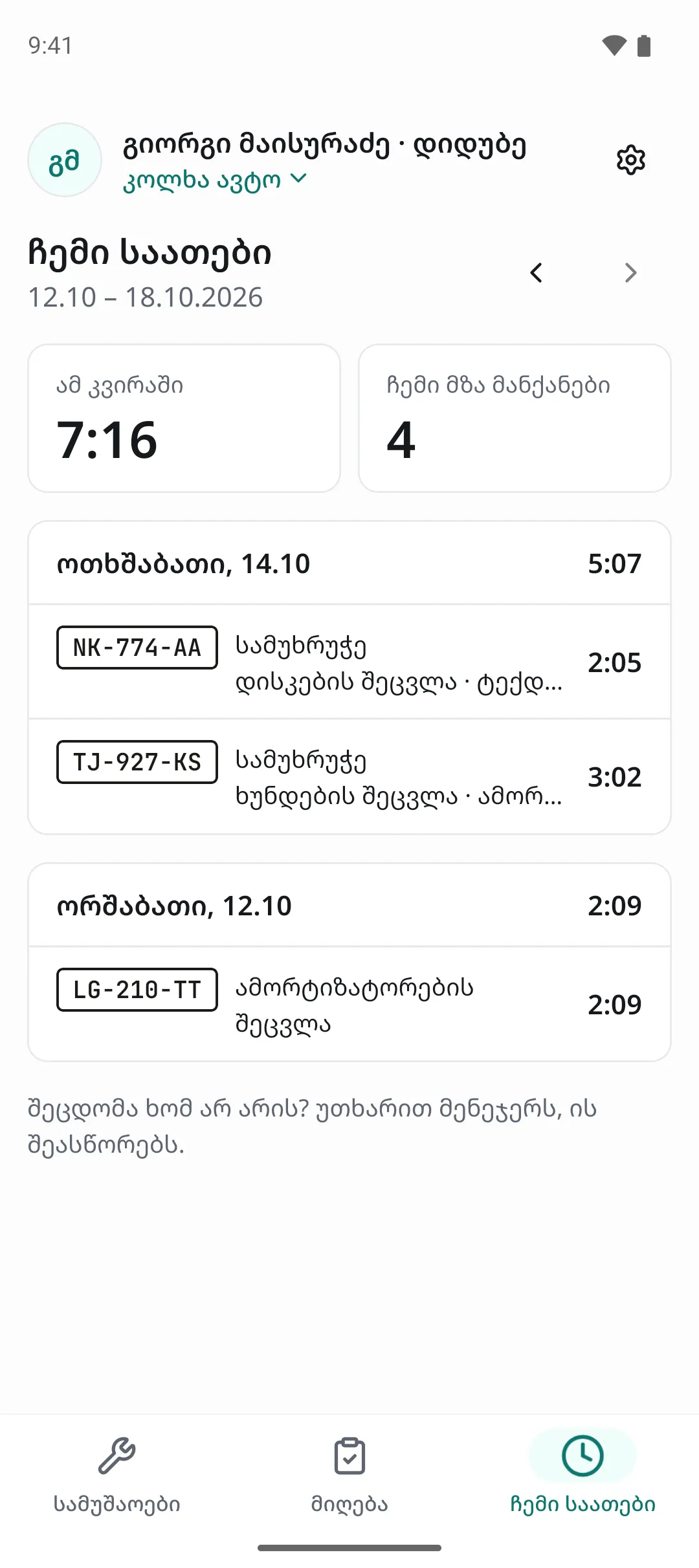
The "My hours" tab shows how much you worked this week, day by day, and your cars that are ready. "Previous week" shows earlier weeks. If you spot a mistake, tell the manager, who will fix it in the timesheets.
Tips
- The owner adds a mechanic in "Settings" › "Staff". The same email and password are used to sign in to the app.
- Turn on notifications: the car owner learns when the shop is waiting for an answer or the car is ready, and the mechanic when a new job is assigned or a customer approves work.
- A car owner does not need the app: everything also works through SMS links. The app gathers the visits and invoices from every shop in one place.
Related guides
- Online booking from your shop's pageHow a customer books a visit on your shop's page in five steps, and where your team sees the booking.
- Customer approval on the phoneWhat the customer sees from the SMS link: the problem found with a photo and price, "Approve" or "Decline" on each item, and the new total.
- Online payment by linkHow a customer pays by card from the SMS link before coming to collect the car, and where the shop sees it.
- Checking a car inHow to check a car into the shop: mileage, fuel, photos, damage, the complaint and the customer's signature.
- Sending extra work for approvalHow to price a problem the mechanic found and send it to the customer by SMS for approval.
- Expenses, payroll and timesheetsHow to record the shop's expenses, work out and pay salaries, and check the hours your mechanics worked.