Customers6 steps
The SMS log
Junto sends customers SMS on its own: booking confirmations, work to approve, "car ready" and review requests. The "Messages" page lists each one, whether it reached the customer and how many SMS it used. One that failed can be sent again from there with one click.
- Owner
- Manager
- Receptionist
Steps
Step 1: Open "Messages"
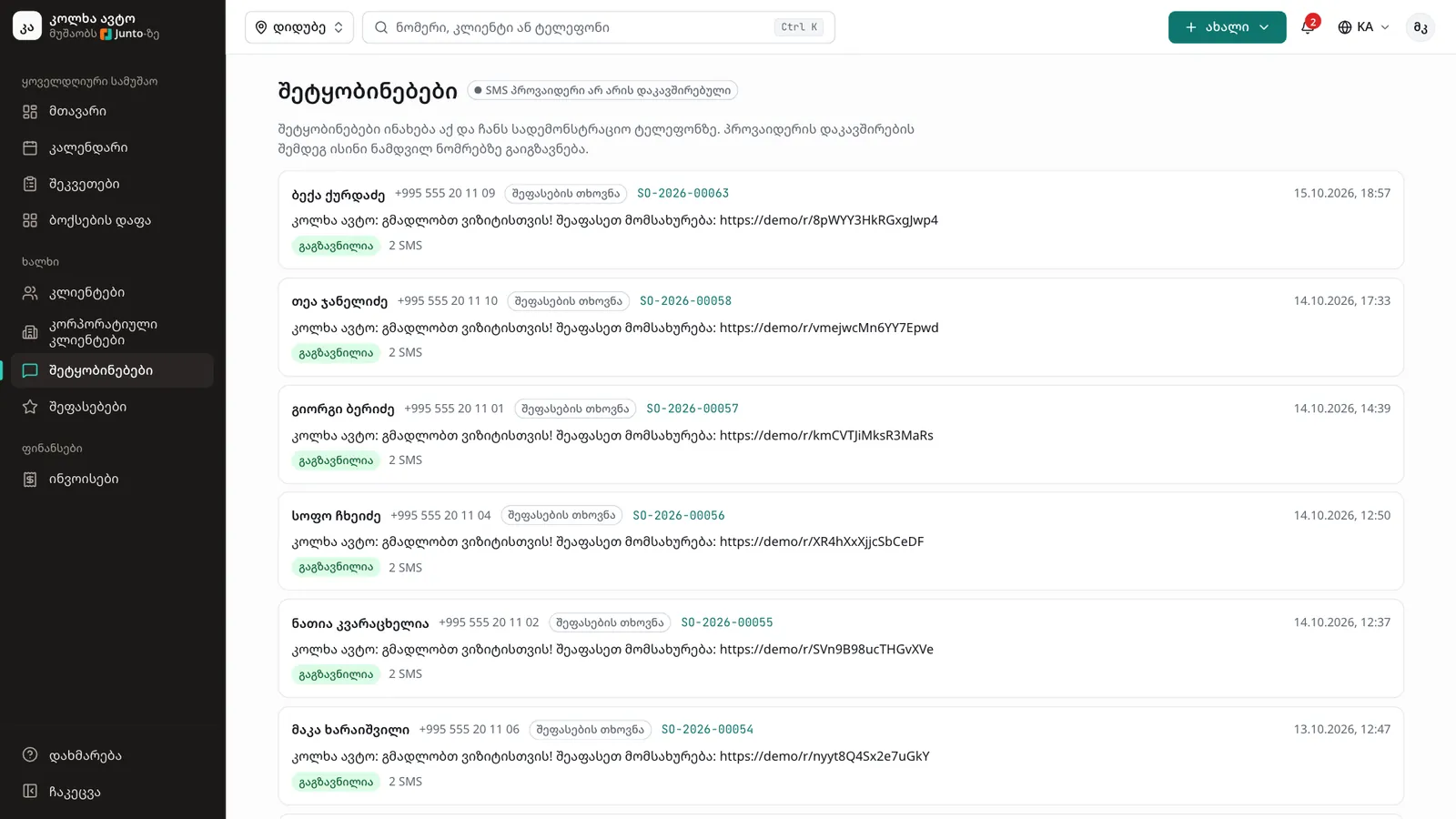
In the left menu choose "Messages". The top shows whether SMS really goes out: "SMS is being sent" or "No SMS provider connected". The list is newest first and refreshes on its own every 10 seconds.
Step 2: Read a message
Each card shows the customer's name and phone, the type (for example "Booking confirmation", "Work to approve", "Car ready", "Review request"), the order number, the date and time, and the full text exactly as the customer received it.
Step 3: Check the status
Below the text is the status: "Sent", "Failed" or "Queued", and how many SMS it used, for example "2 SMS". A long text is split into several SMS and each one counts.
Step 4: Find a failed message
A failed message has a red "Failed" badge and the reason, for example "The SMS balance is empty." Fix the cause first: top up the balance or correct the customer's number.
Step 5: Click "Send again"
Next to the failed message click "Send again". On success "Sent" appears and the status becomes "Sent". If it fails again you see "Could not send. Try again later."
Step 6: Go to the work order
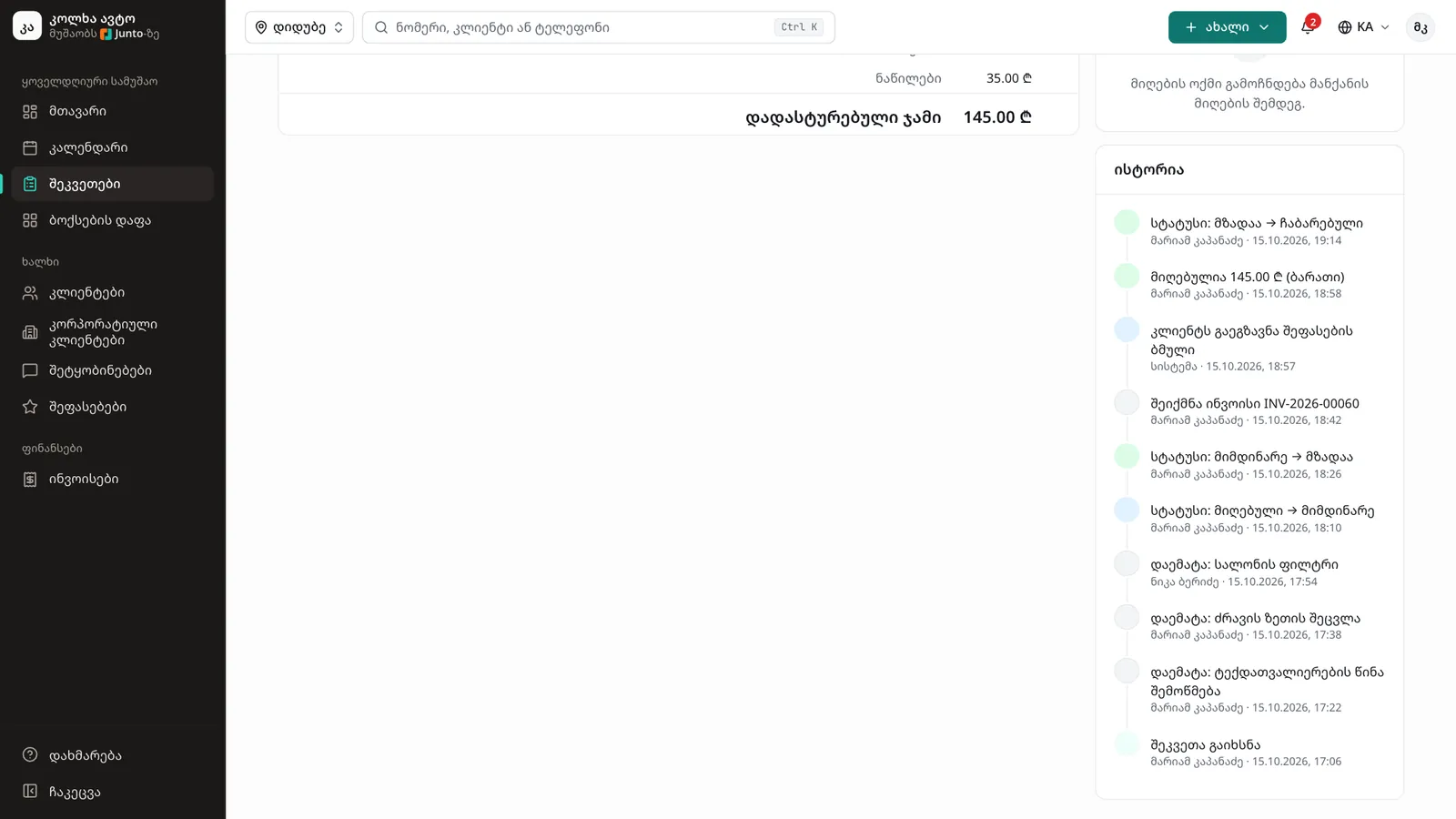
Click the order number to open the work order the SMS belongs to. Its "History" shows when the approval link was sent to the customer and when they opened it.
Tips
- One SMS holds 70 characters of Georgian text (67 each in a long text) or 160 Latin (153). One SMS costs 0.04 ₾ and comes out of the prepaid balance.
- The owner sees the SMS balance and this month's use under "Settings" › "Subscription and billing" and tops it up there.
- A customer's confirmation code is hidden in the log (••••••): staff see that a code went out, not the code itself.
- Until an SMS provider is connected, messages are kept here as "Queued" and do not go to real numbers.
- Mechanics do not see this page.
Related guides
- Sending extra work for approvalHow to price a problem the mechanic found and send it to the customer by SMS for approval.
- Customer approval on the phoneWhat the customer sees from the SMS link: the problem found with a photo and price, "Approve" or "Decline" on each item, and the new total.
- Online payment by linkHow a customer pays by card from the SMS link before coming to collect the car, and where the shop sees it.
- Reviews and repliesHow a customer rates a visit with five stars from the SMS link, and how the owner replies in public on the "Reviews" page.
- A new appointment in the calendarHow to book a customer into the calendar during a phone call: customer, car, services and time in one window.