Workshop6 steps
Labour and parts on a work order
A work order has two kinds of lines: labour and parts. Each line has a quantity and a price, and a part also has a cost, so the profit report gets the margin right. Invoices are built only from approved lines.
- Owner
- Manager
- Receptionist
Steps
Step 1: Open the work order
In the left menu choose "Work orders" and click the car. On the order page you find the section "Labour and parts", with two groups: "Labour" and "Parts".
Step 2: Add labour
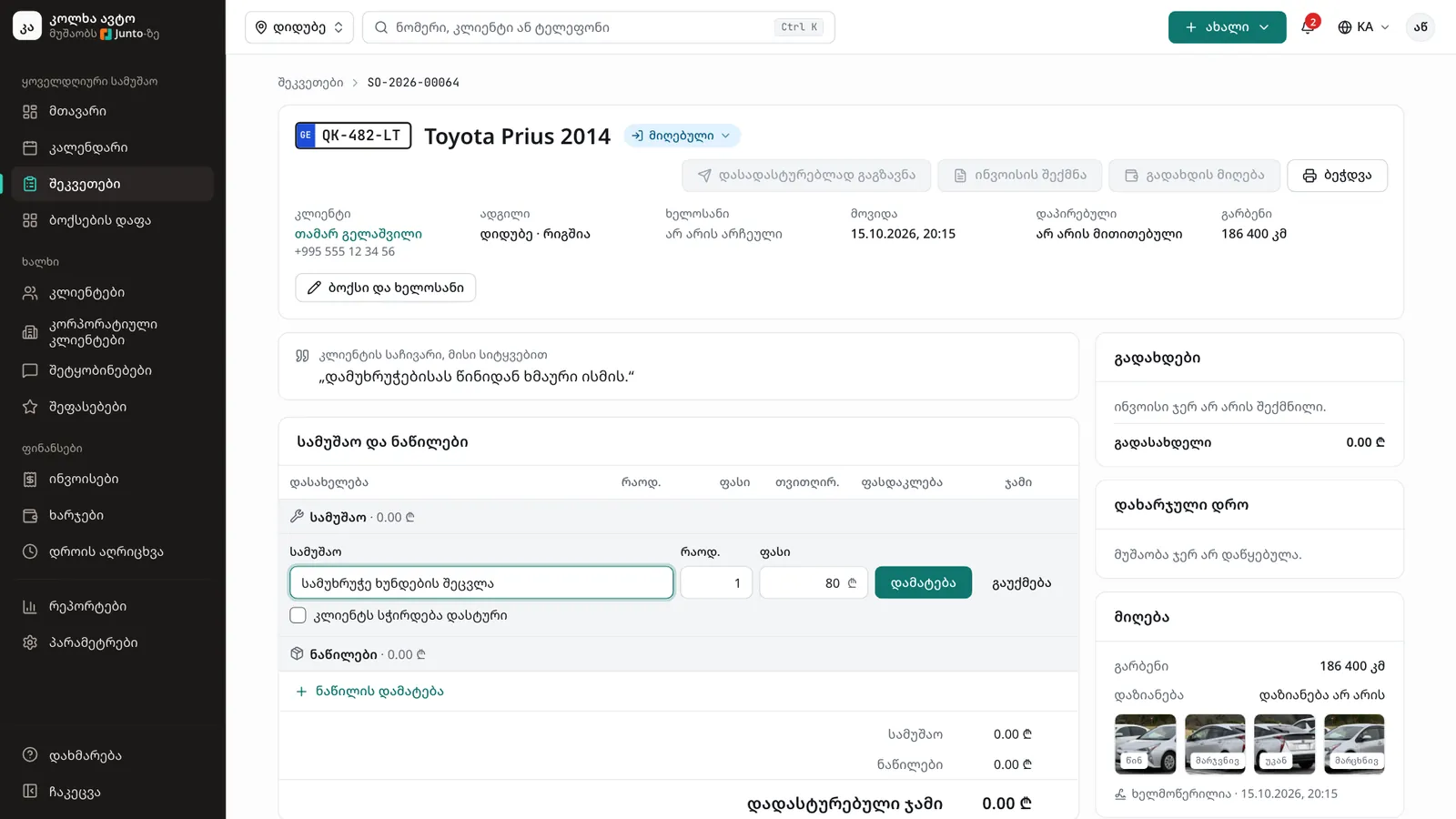
Under "Labour" click "Add labour". In the "Labour" field pick a service from the list or type your own. A service picked from the list fills in its price. Check "Qty" and "Price" and click "Add".
Step 3: Add a part
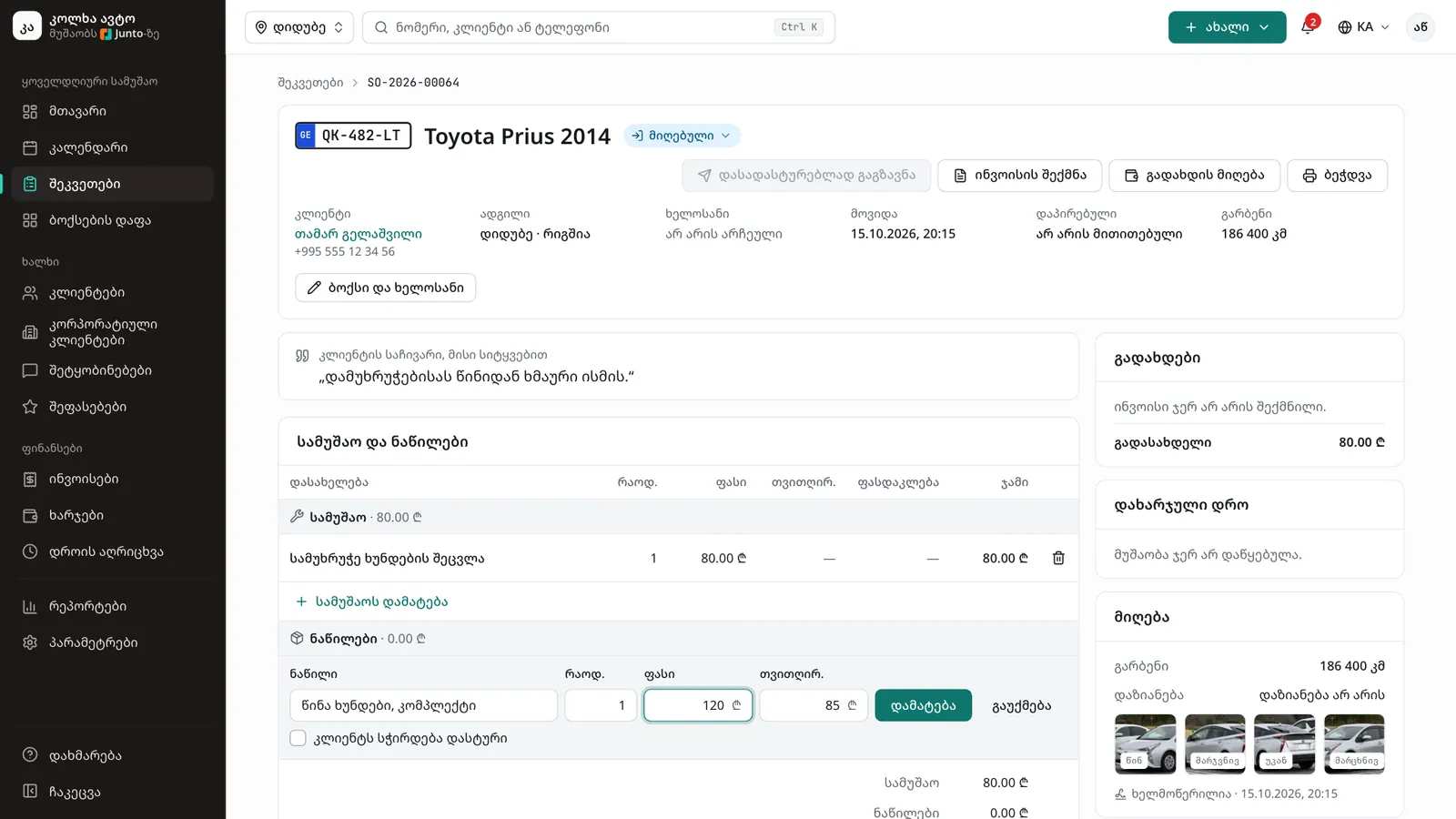
Under "Parts" click "Add part". Type the part's name in the "Part" field, then "Qty", "Price" (what the customer pays) and "Cost" (what the shop paid for it). Click "Add".
Step 4: Decide whether it needs approval
If the work is already agreed with the customer, leave "Needs the customer's approval" unticked. If the customer must say yes first, tick it. The line then shows "Waiting for approval" and is sent to the customer for approval.
Step 5: Check the totals
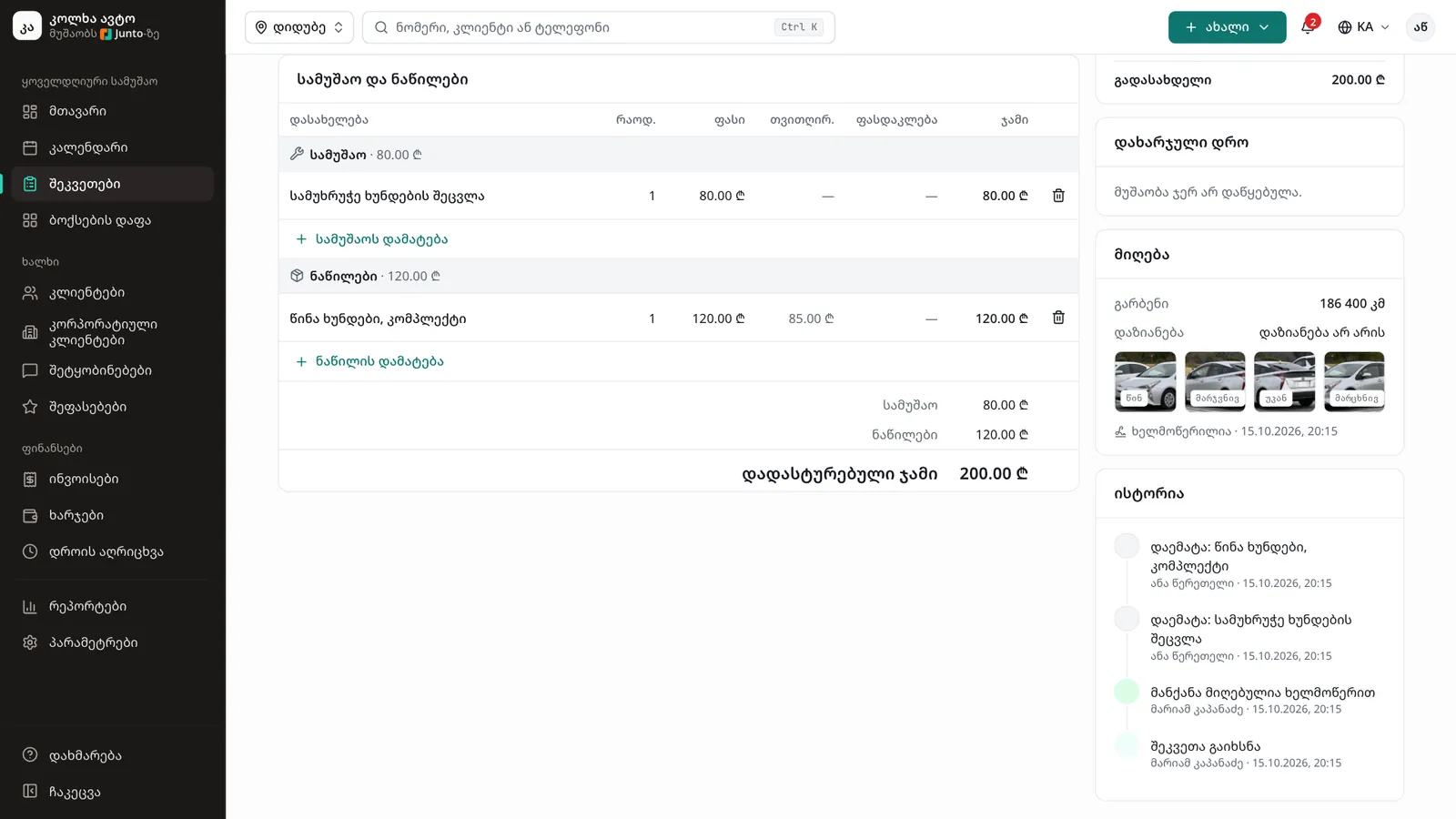
Below the lines you see the totals: "Labour", "Parts", "Approved total" and, if any, "Waiting for approval". Only the approved total goes on the invoice.
Step 6: Remove a line added by mistake
Click the bin icon at the end of the line ("Remove line"). If you need it back, click "Undo" in the "Line removed" message.
Tips
- Type prices as numbers, for example 50 or 49.90. The lari sign is added for you.
- Only owners and managers see the cost. Mechanics never see prices at all.
- For now parts are free text, without stock levels.
- Every line added or removed is recorded in the order's "History".
- A delivered or cancelled order is closed and its lines can no longer be changed.
Related guides
- Sending extra work for approvalHow to price a problem the mechanic found and send it to the customer by SMS for approval.
- Assigning a bay and a mechanicHow to give a work order a bay, a mechanic and a promised time in one dialog.
- Invoice and taking paymentHow to create an invoice from a work order, take payment in cash, by card or by bank transfer, and print the invoice.
- Checking a car inHow to check a car into the shop: mileage, fuel, photos, damage, the complaint and the customer's signature.
- Handing the car backHow to mark a car ready, take payment and hand it back to the customer, or leave it as a debt.