Bookings and check-in7 steps
Online booking from your shop's page
Your shop has its own page at <shop>.junto.ge, where customers pick a service and a free time and book a visit without calling. The booking shows in your calendar at once, so the front desk spends less time on the phone.
- Car owner
- Owner
- Manager
- Receptionist
Steps
Step 1: The customer opens your shop's page
The customer opens your page at <shop>.junto.ge and clicks "Book a visit". You find the booking page's exact address under "Settings" → "Online booking" → "Page address". Share it on social media or by SMS.
Step 2: Choosing services
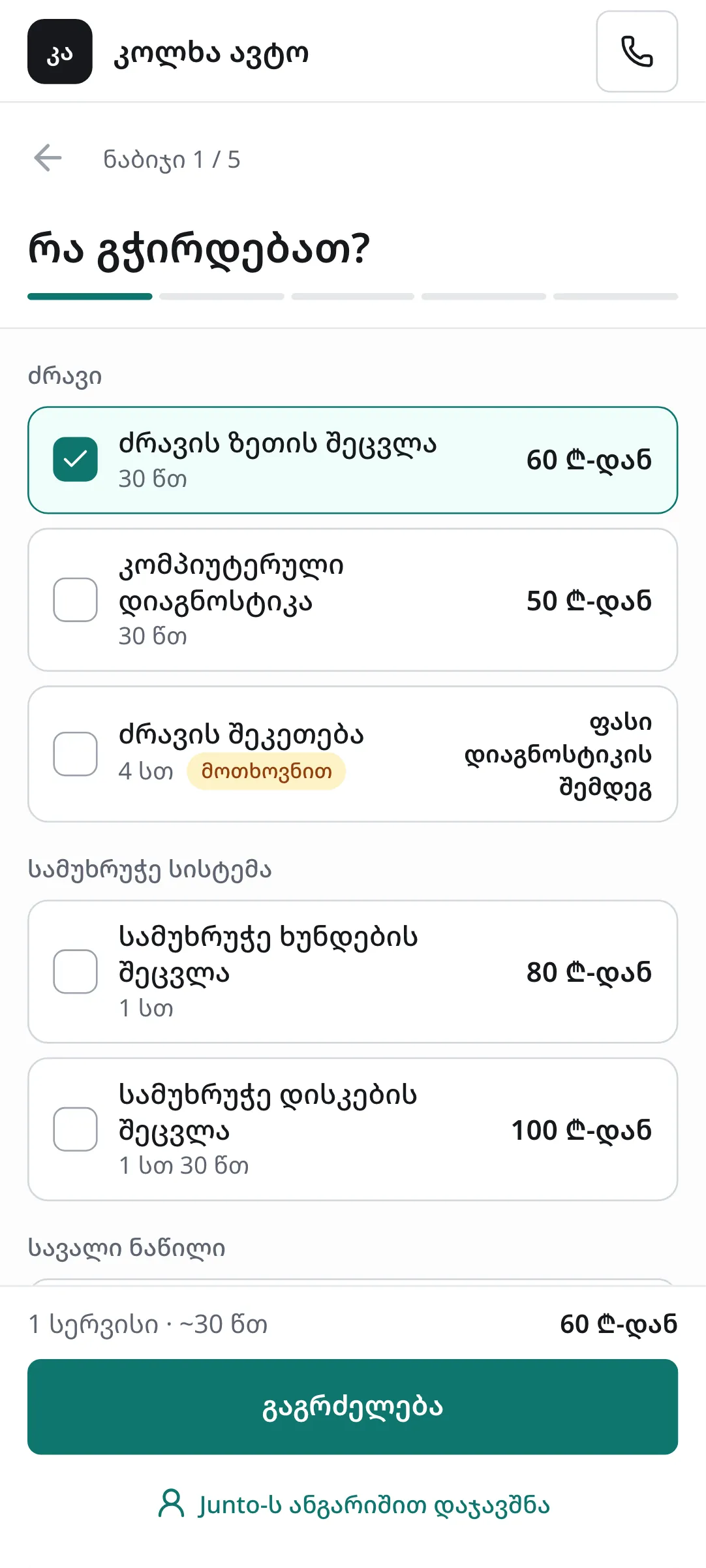
On "What do you need?" the customer picks one or more services. If they do not know what is wrong, they choose "I am not sure, I need a diagnosis" and describe the problem. Then they click "Continue".
Step 3: The car
On "Your car" the customer enters the "Licence plate" and "Make". "Model" and "Year" are optional.
Step 4: Branch and time
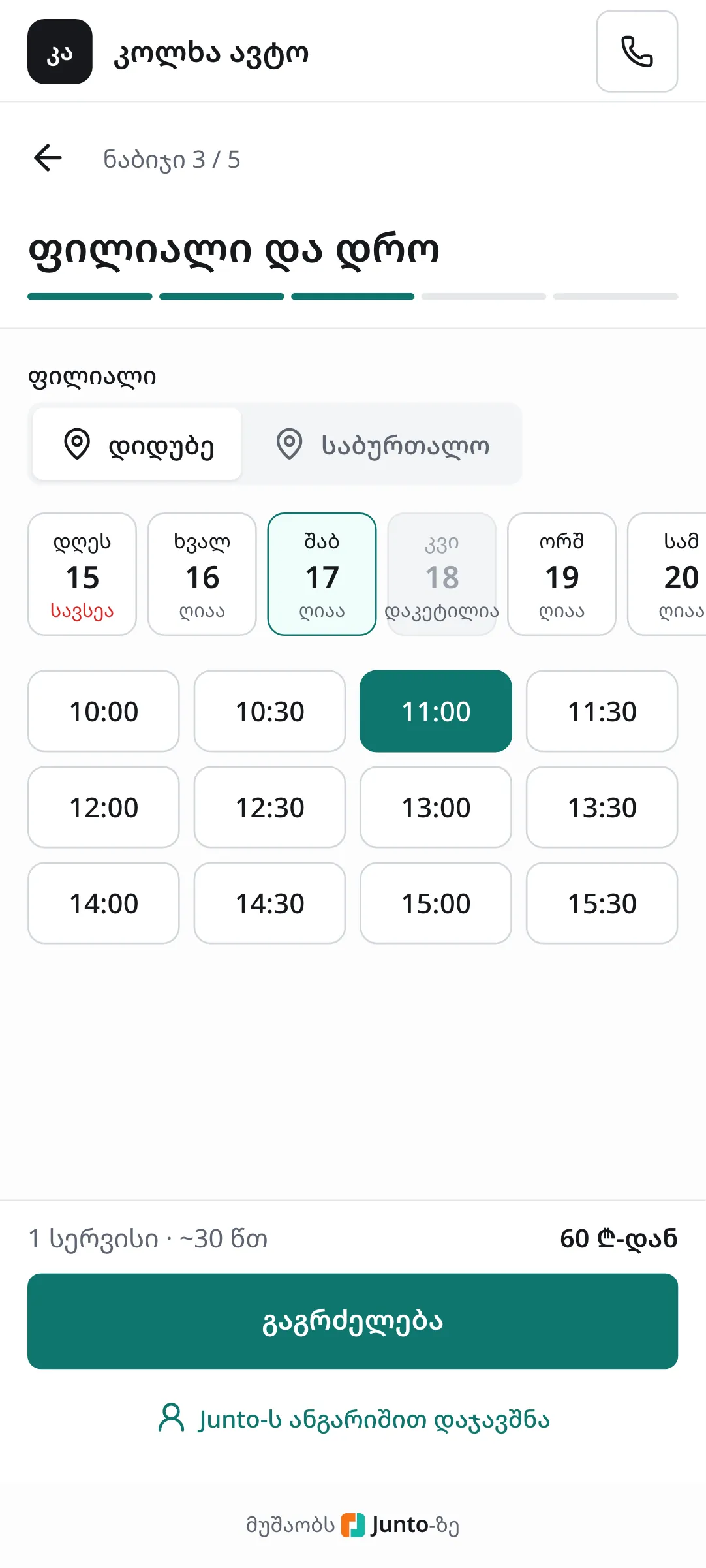
On "Branch and time" the customer picks a branch, a day and a free time. Only times that are really free under your working hours, bays and online booking rules are shown.
Step 5: Contact and SMS code
On "Contact" the customer enters a "Name" and "Mobile", clicks "Get the code" and types the "SMS code". This confirms the number is really theirs.
Step 6: Confirming
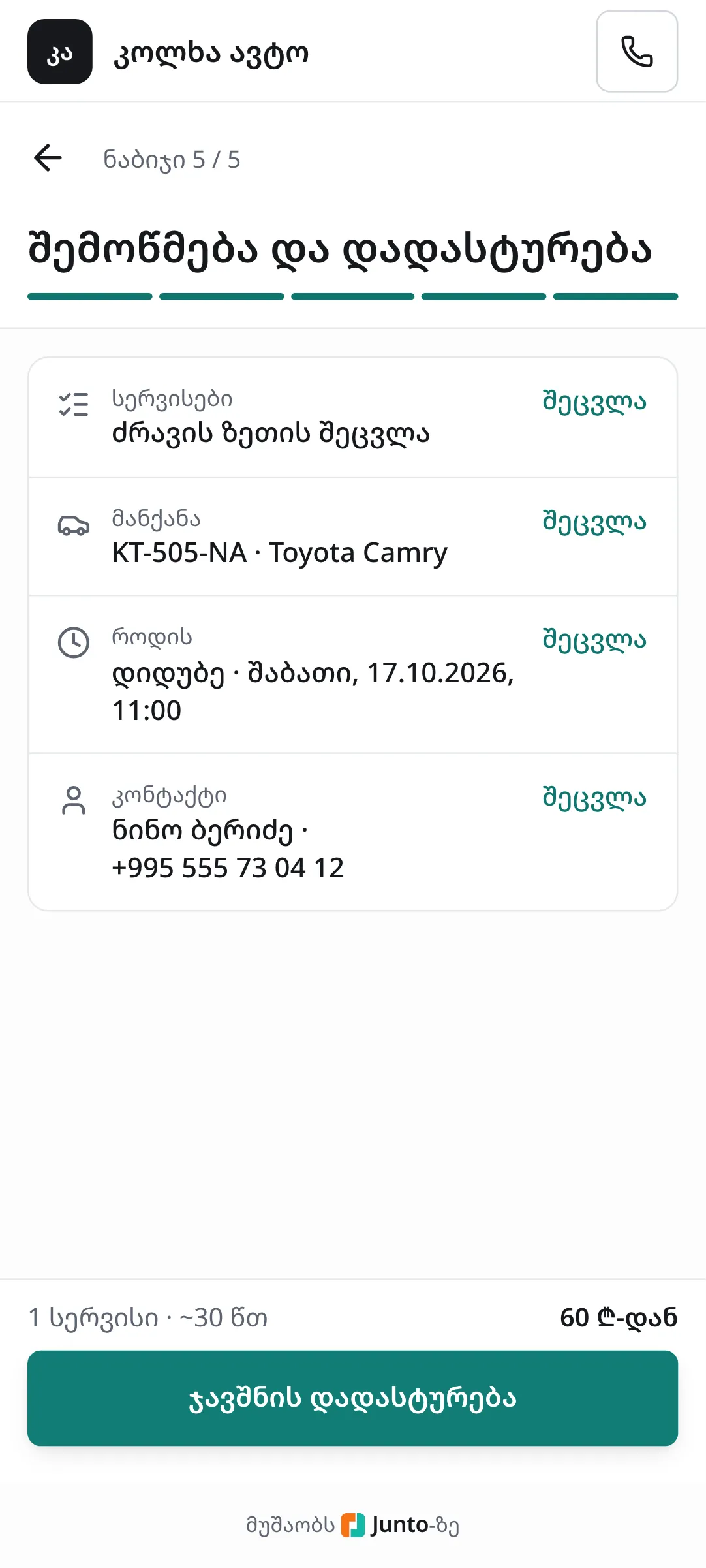
On "Review and confirm" the customer checks everything and clicks "Confirm booking". "Booking confirmed" appears, and the customer gets an SMS with a link to move or cancel the visit.
Step 7: Where the shop sees it
On app.junto.ge, "New online booking" with the plate appears in the notifications (the bell). The booking is added to the "Calendar" by itself; click it and "Source" says "Online". When the customer arrives, click "Check in the vehicle".
Tips
- If the customer moves or cancels from the SMS link, you get "Customer moved a booking" or "Customer cancelled a booking" in the notifications.
- Which services are offered online, how far ahead customers can book and the booking mode are set under "Settings" → "Online booking".
- In "On request" mode customers suggest a time from the Junto app or their junto.ge account. These requests open in the calendar with the "Requests" button.
- One phone number can hold at most three upcoming visits at one shop.
Related guides
- Online booking and service settingsHow to choose the online booking mode and which services are offered online, and how to set service prices and durations.
- A new appointment in the calendarHow to book a customer into the calendar during a phone call: customer, car, services and time in one window.
- Checking a car inHow to check a car into the shop: mileage, fuel, photos, damage, the complaint and the customer's signature.
- The list and map of shops on junto.geHow drivers find a shop on junto.ge/services with the list and the map, and how your shop shows up there.
- The Junto apps for car owners and mechanicsWhat the car owner app does (booking, order status, approval, payment, garage) and what the mechanic app does (jobs, timer, check-in, hours).