Bookings and check-in8 steps
Checking a car in
At check-in you record the car's condition at the moment the customer leaves it with you: mileage, fuel, photos and damage. The customer signs on the screen and Junto opens the work order by itself. This settles any later argument about the state the car came in.
- Owner
- Manager
- Receptionist
- Mechanic
Steps
Step 1: Start the check-in
For a booked visit, click the appointment in the "Calendar" and then "Check in the vehicle". For a walk-in, choose "New" → "Vehicle check-in and work order" in the top bar, find the customer, pick the vehicle and click "Start check-in". Mechanics choose "Vehicle check-in" in the menu.
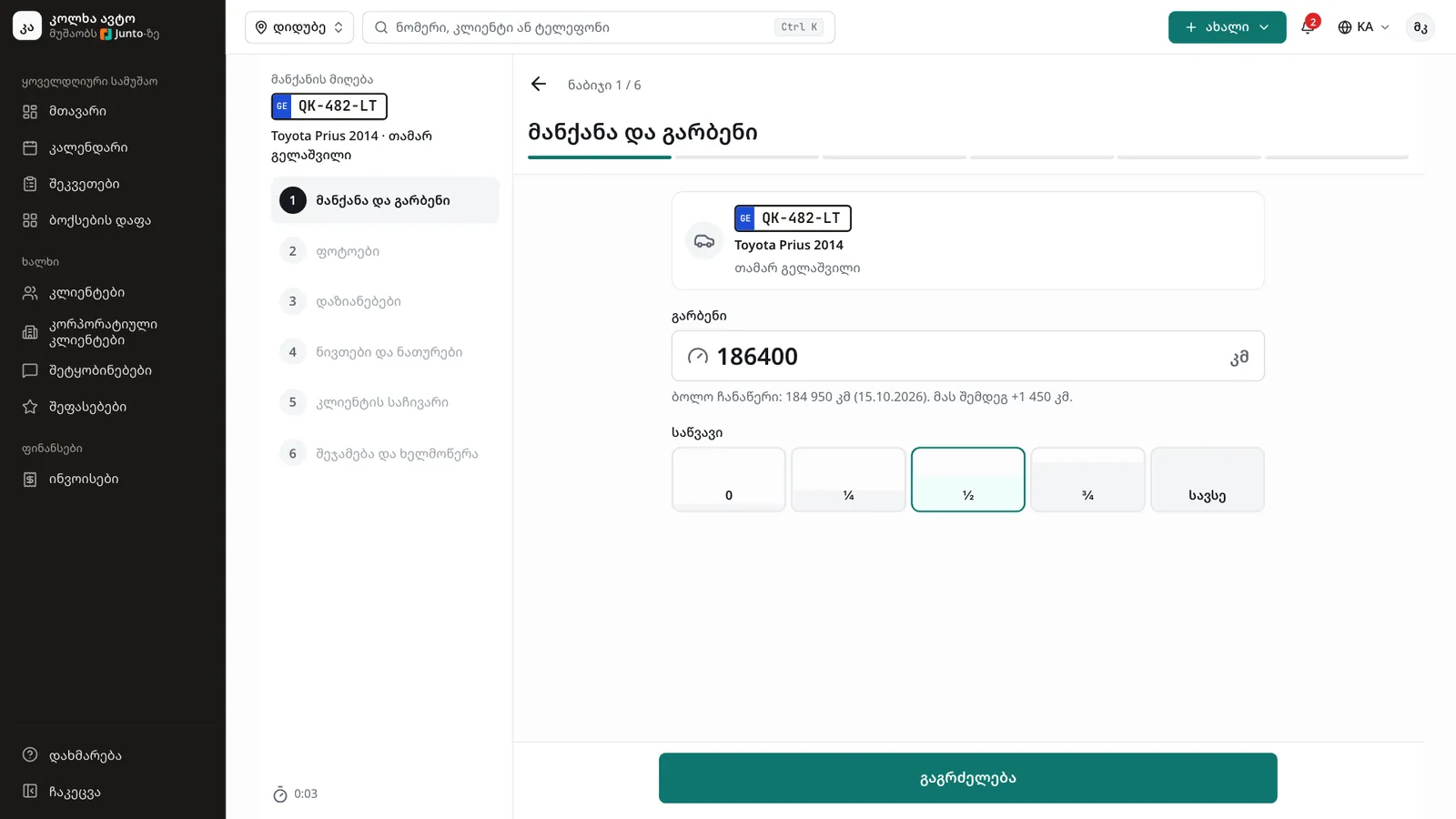
Step 2: Car and mileage
Enter the "Mileage" and pick the "Fuel" level (0, ¼, ½, ¾ or "Full"). The mileage cannot be lower than the last reading. Click "Continue".
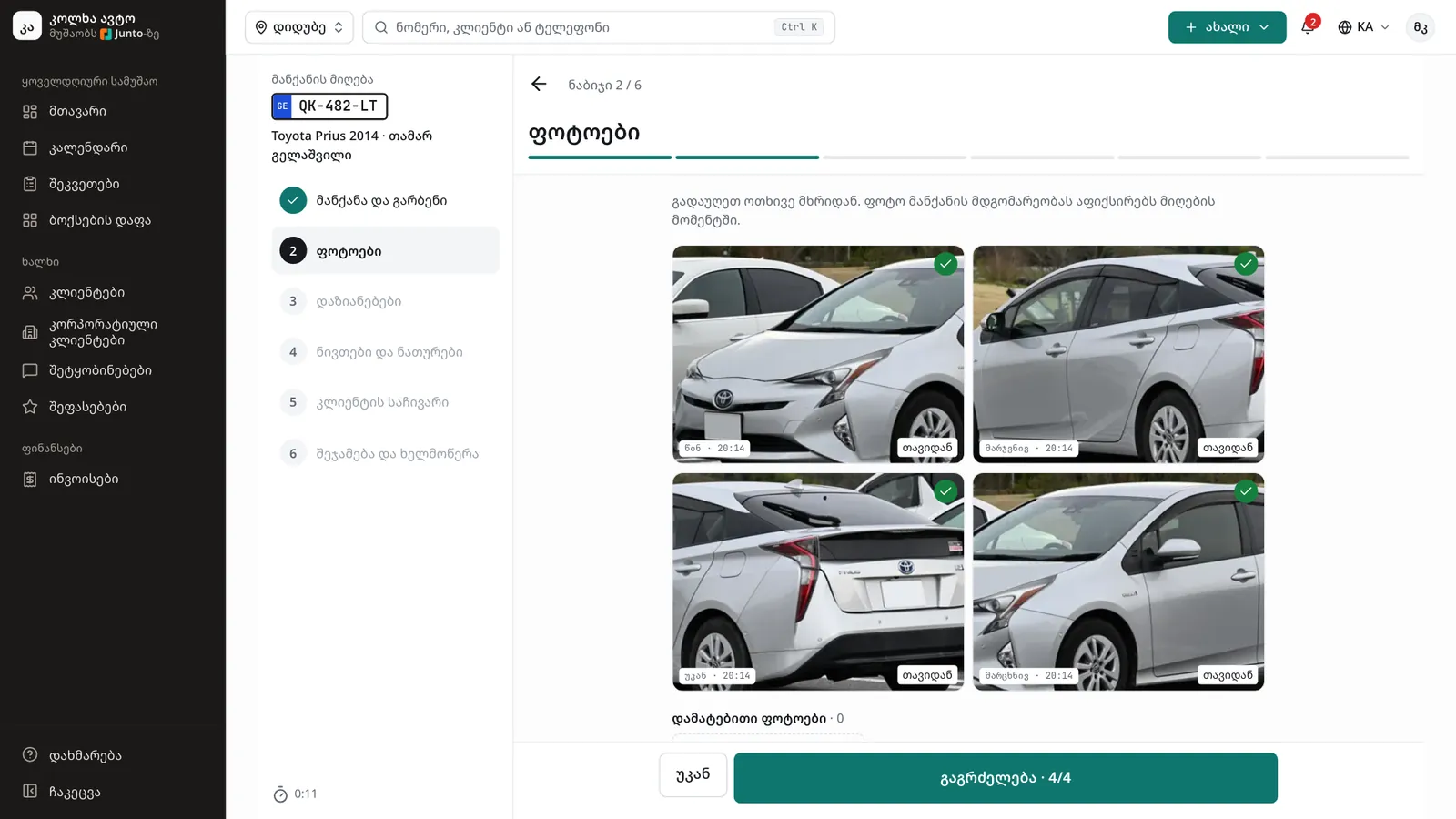
Step 3: Photos
Take one photo from each side: "Front", "Right", "Back" and "Left". Tap an empty slot to take it. "Add photo" adds extra ones. The button shows how many are done, e.g. "Continue · 4/4".
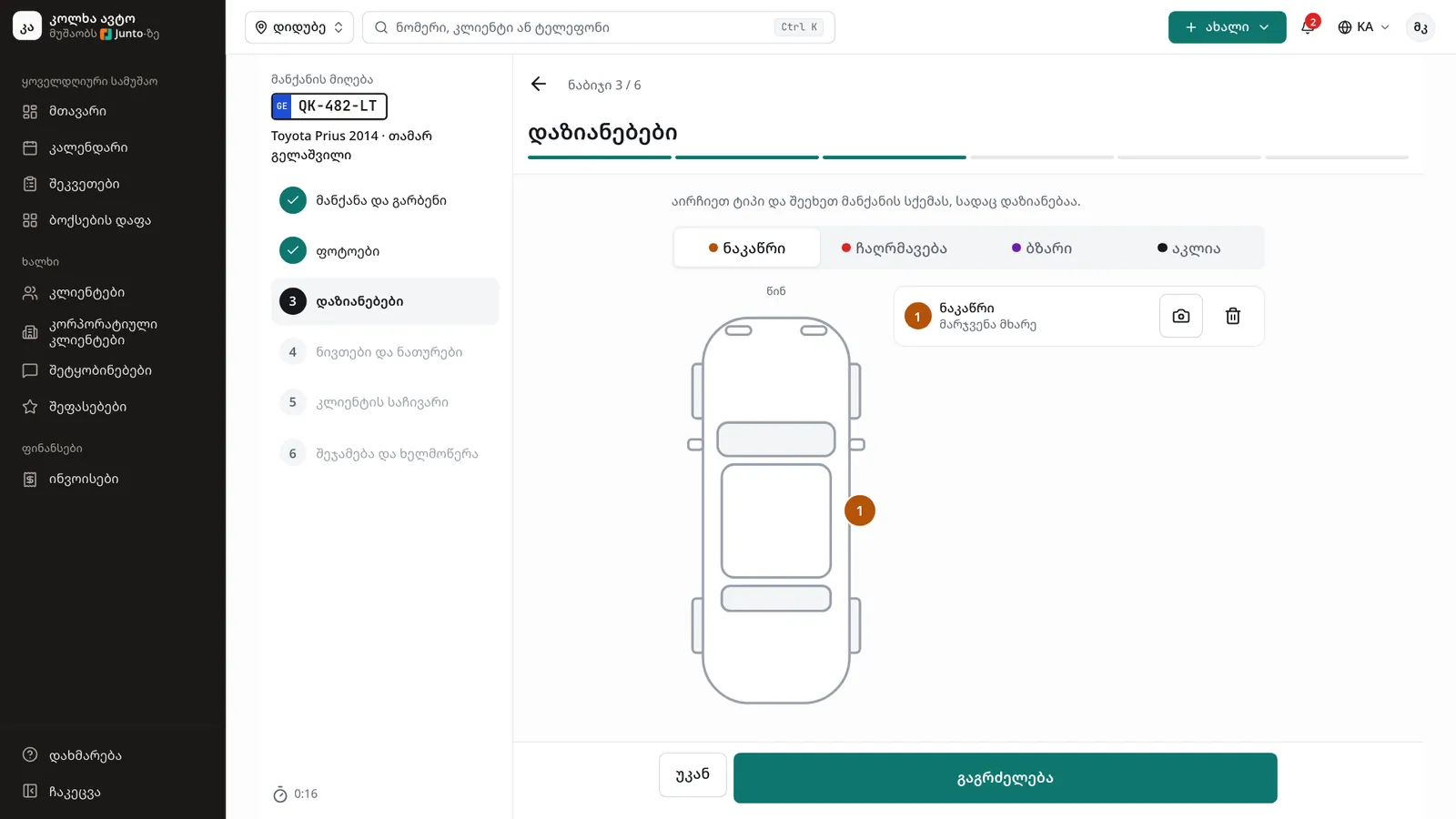
Step 4: Damage
Pick a type ("Scratch", "Dent", "Crack" or "Missing") and tap the car diagram where the damage is. The mark shows with a number; the camera button attaches a photo to it. If the car has no damage, just continue.
Step 5: Items and warning lights
Tick the "Items left in the car" (e.g. documents, spare wheel) and the "Warning lights that are on" (e.g. check engine, ABS).
Step 6: Customer's complaint
In "Customer's complaint", write in the customer's words what is wrong and when it happens. The quick buttons ("+ Noise", "+ Vibration", "+ Leak", "+ Smell") add the word to the text.
Step 7: Summary and signature
Check the summary; click "Change" to fix anything. Ask the customer to sign with a finger in "Customer's signature", then click "Finish check-in".
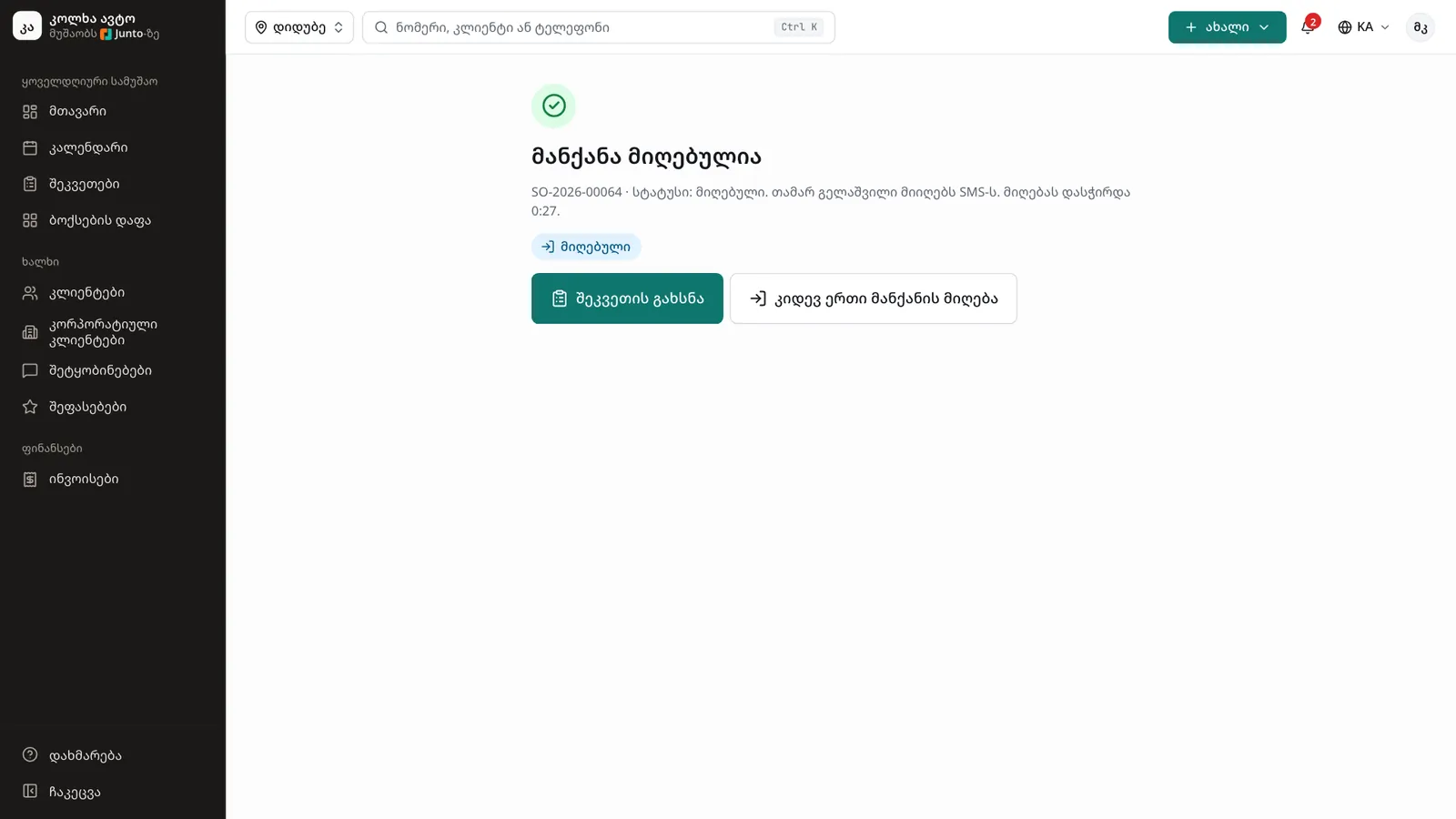
Step 8: The work order is open
"The car is checked in" appears with the order number and the status "checked in". A customer with a mobile number gets an SMS. Click "Open the work order" to add the work, or "Check in another car".
Tips
- The step bar at the top takes you back to any step you have already passed.
- Check-in photos are kept on the vehicle's page, under "Check-in photos".
- Check-in works best on a phone: photos come straight from the camera and the customer signs on the screen with a finger.
Related guides
- A new appointment in the calendarHow to book a customer into the calendar during a phone call: customer, car, services and time in one window.
- A new customer and their carHow to add a new customer and their first vehicle in one window, for example for a walk-in without a booking.
- Labour and parts on a work orderHow to add labour and parts to a work order with a price, a cost and, when needed, the customer's approval.
- Assigning a bay and a mechanicHow to give a work order a bay, a mechanic and a promised time in one dialog.
- The bay boardHow to follow the workshop on one screen: who is in which bay, how long they have been working and which car is ready.