Money7 steps
Online payment by link
When the car is ready, the customer gets a payment link in the SMS. On the phone they see the invoice and pay by card on the bank's secure page. The payment is recorded on the invoice by itself, so reception has nothing to type.
- Car owner
- Owner
- Manager
- Receptionist
Steps
Step 1: The customer gets the SMS with the link
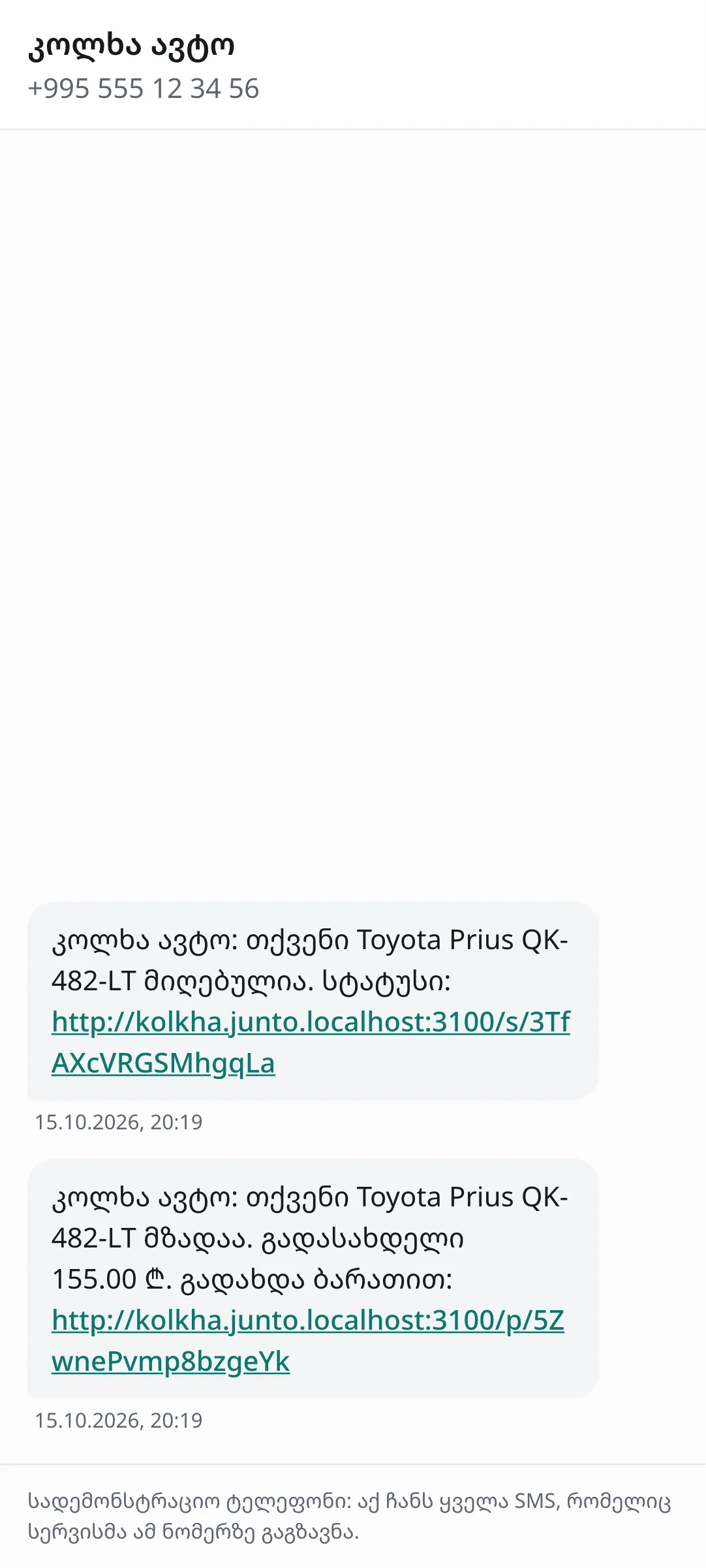
When you move the work order to "Ready", the customer gets the "Car ready + payment" SMS with the amount and a "Pay by card:" link. The link opens in the phone browser.
Step 2: The payment page
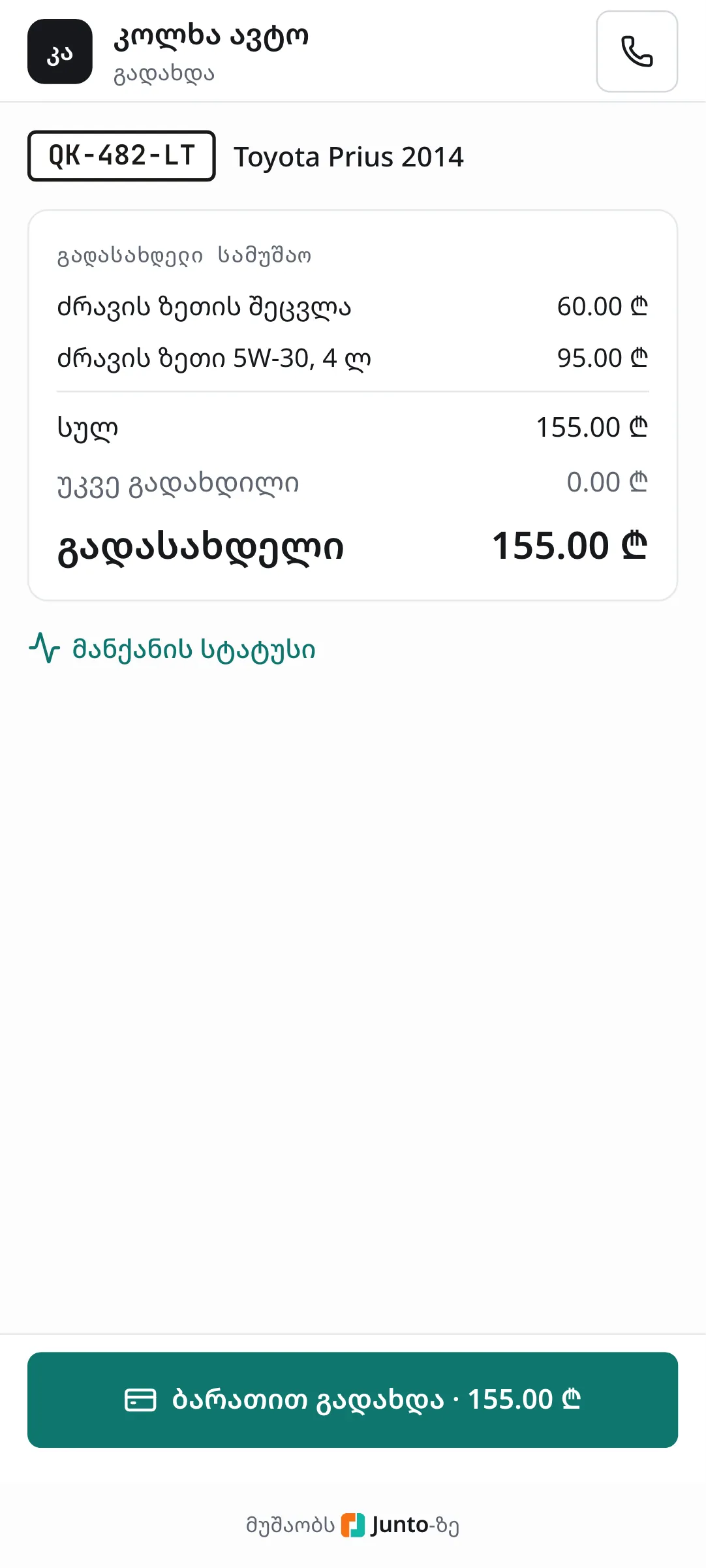
The page shows the plate, "Invoice N · date", the lines with prices, "Total", "Already paid" and, large, "To pay". Below are the links "View the full invoice" and "Car status".
Step 3: Click "Pay by card"
The customer taps the bottom button "Pay by card · …" with the amount. "Taking you to the bank’s secure page…" appears and the bank's page opens.
Step 4: The bank's page
Card details are entered on the bank's page and Junto never sees them. In the demo shop a "Test bank · Junto" page opens instead, with the buttons "Pay" and "Decline": no real money is charged.
Step 5: The result for the customer
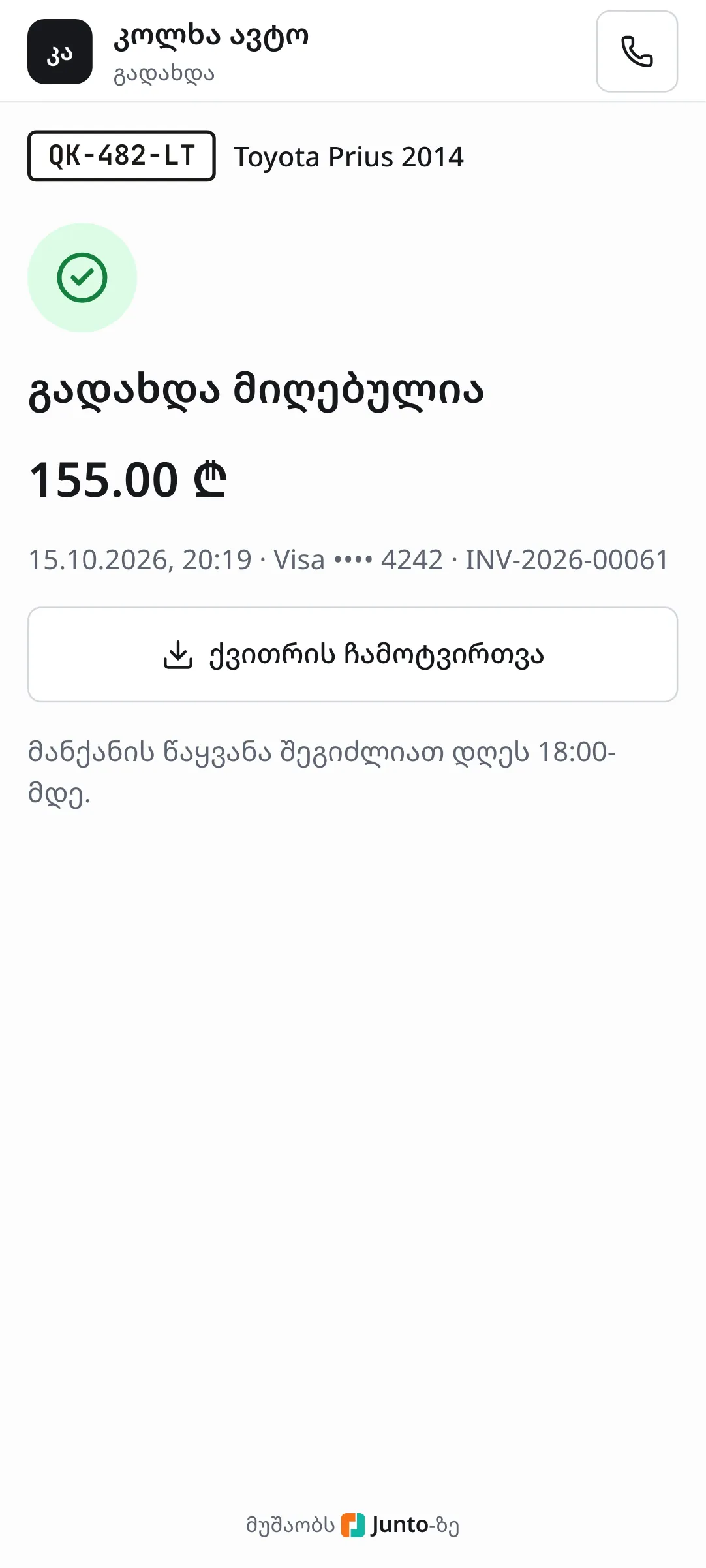
The bank sends the customer back to Junto. On success the page shows "Payment received", a "Download the receipt" button and until when the car can be collected. On failure it shows "Payment failed" with the reason, a "Try again" button and "Or pay at the shop in cash or by card."
Step 6: The payment in the shop
On the order's "Payments" card the payment shows as "Online" · "Online link" with the bank reference, and the invoice status becomes "Paid". Reception has nothing to record: just hand the car over.
Step 7: Turning it on (owner)
The owner sets it up under "Settings" › "Online payments" in three steps: "Apply at the bank", "Get the merchant ID from the bank and enter it" and "Make a test payment". The same page has the switches "Test mode" and "Payment link in the “car ready” SMS", and the list "Recent online payments".
Tips
- Until the car is ready, the link shows "Payment will be possible once the car is ready."
- On a paid invoice the link shows "This invoice was already paid on …" and a "Receipt" button. It cannot be paid twice.
- If the bank has not answered yet, the page shows "Waiting for the bank" and refreshes on its own.
- A payment link works for 60 days. Online payment needs the invoices module.
- In "Test mode" no real money is charged. Turn it off once the test payment goes through.
Related guides
- Invoice and taking paymentHow to create an invoice from a work order, take payment in cash, by card or by bank transfer, and print the invoice.
- Handing the car backHow to mark a car ready, take payment and hand it back to the customer, or leave it as a debt.
- Customer approval on the phoneWhat the customer sees from the SMS link: the problem found with a photo and price, "Approve" or "Decline" on each item, and the new total.
- The SMS logWhere to see every SMS the shop sent to customers, whether it arrived, and how to send again one that failed.
- Reports and the profit reportHow to see revenue, popular services, mechanic results and profit for any period, and how to download them as a CSV file.