Workshop6 steps
The bay board
On the bay board every bay has its own card: the car, the work, the mechanic, the status and a timer. Next to them you see the queue and the cars that are ready. At a glance you know what is happening where and which car is running late.
- Owner
- Manager
- Receptionist
Steps
Step 1: Open the "Bay board"
In the left menu choose "Bay board". The branch and the time are shown at the top. If you have several branches, choose the branch first, because the board shows one branch.
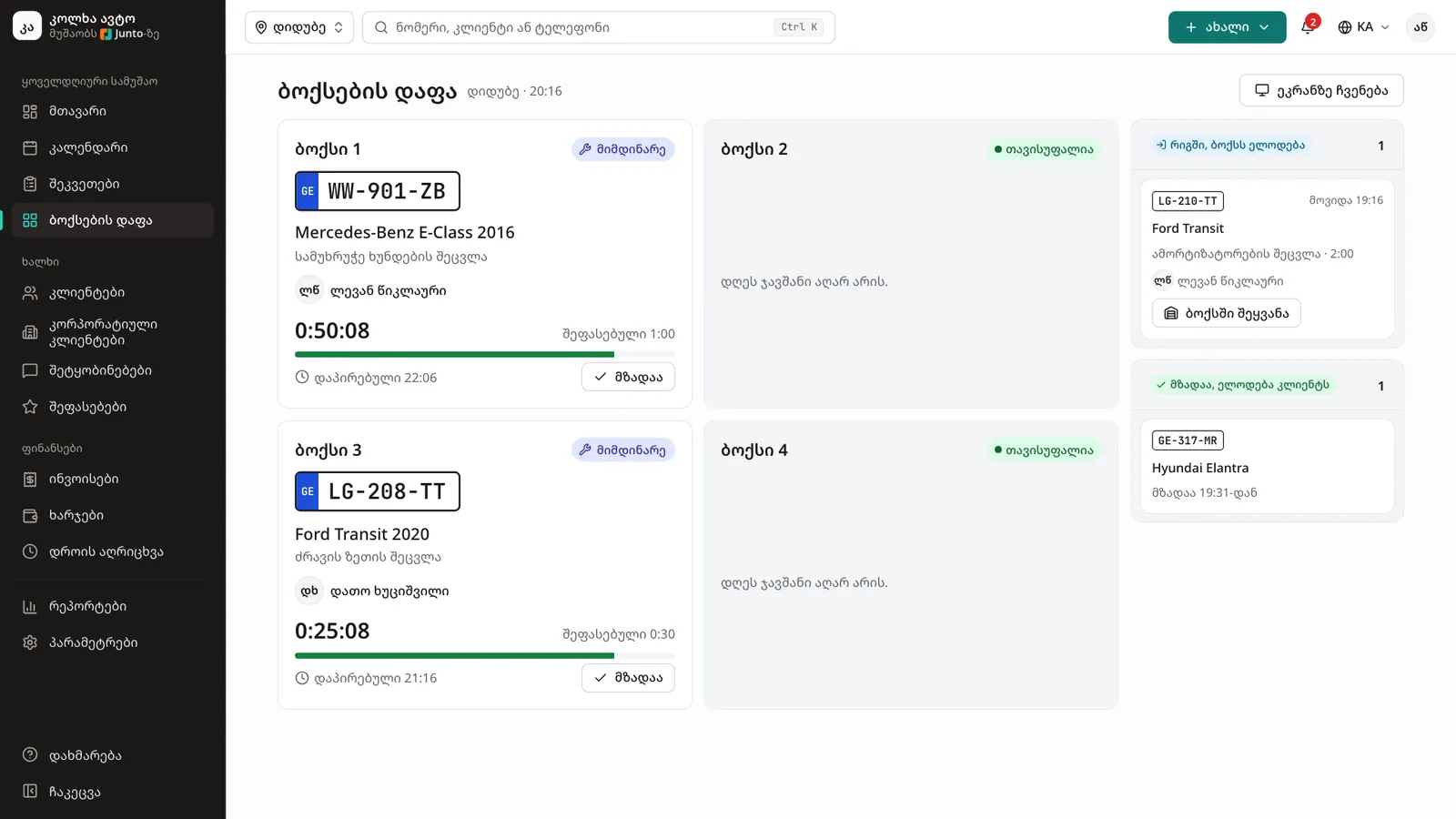
Step 2: Read a bay card
A busy bay shows the plate, the car, the work, the mechanic and the status. A free bay shows "Free" and the "Next vehicle" from today's bookings.
Step 3: Move a car into a bay
The right column "In queue, waiting for a bay" lists the checked-in cars. Click "Move into a bay" and choose a free bay. The button shows only when a bay is free.
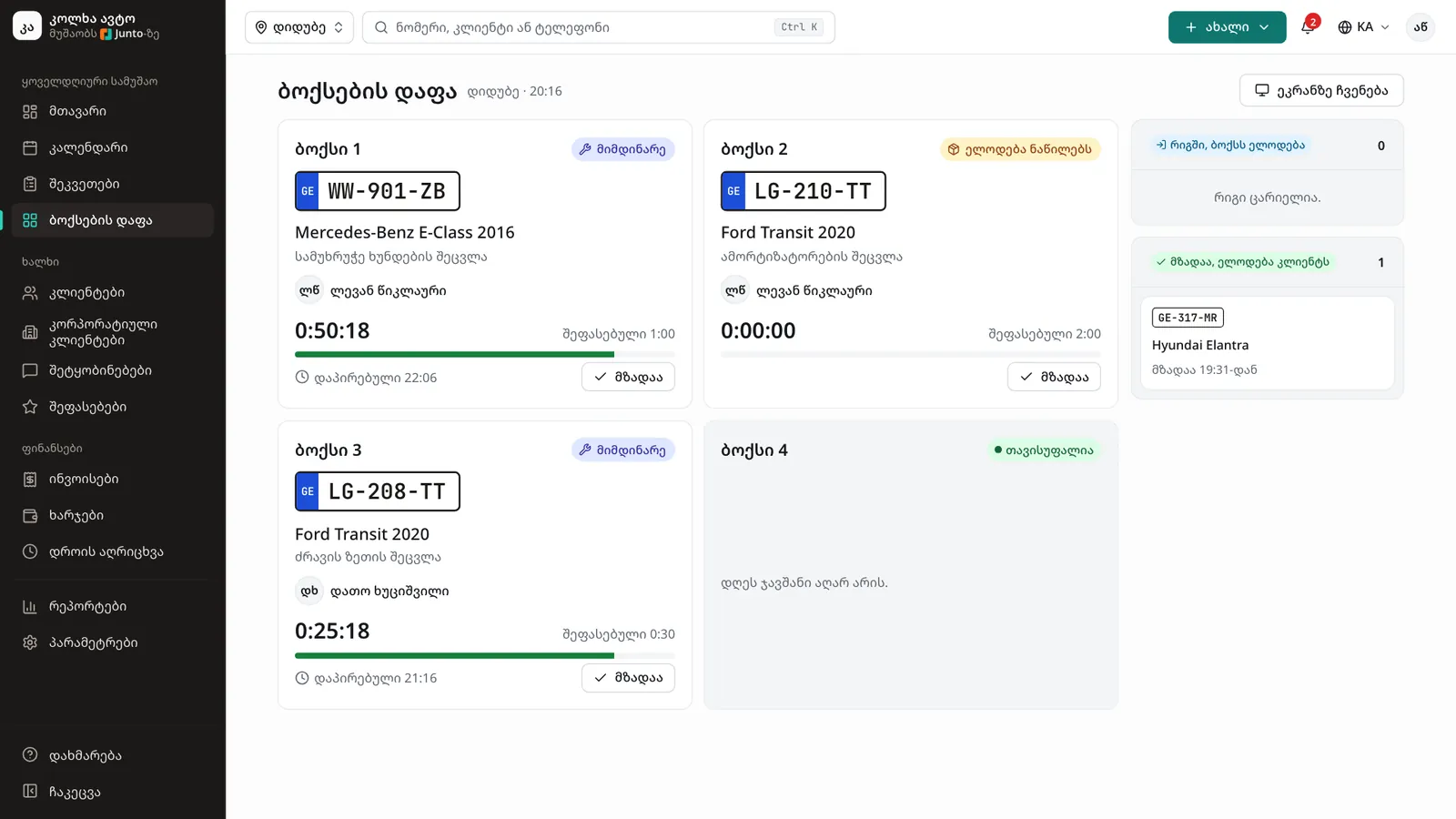
Step 4: Watch the timer
When the mechanic clicks "Start" under "My jobs", the order becomes "In progress" and the timer starts on the bay card. Next to it you see the "Estimated" time. The bar is green and turns red when the job runs over. Below, the "Promised" time turns red as "Late" once it has passed.
Step 5: Change the status
Click the plate on the card to open the order. Click the status button at the top and, in the "Change status" menu, choose the new status, for example "Waiting for parts". You can also change it under "Work orders" in the "Board" view by dragging the card to another column.
Step 6: Mark it ready
When the work is done, click "Ready" on the bay card. The bay is freed, the car moves to "Ready, waiting for the customer" and the customer gets an SMS.
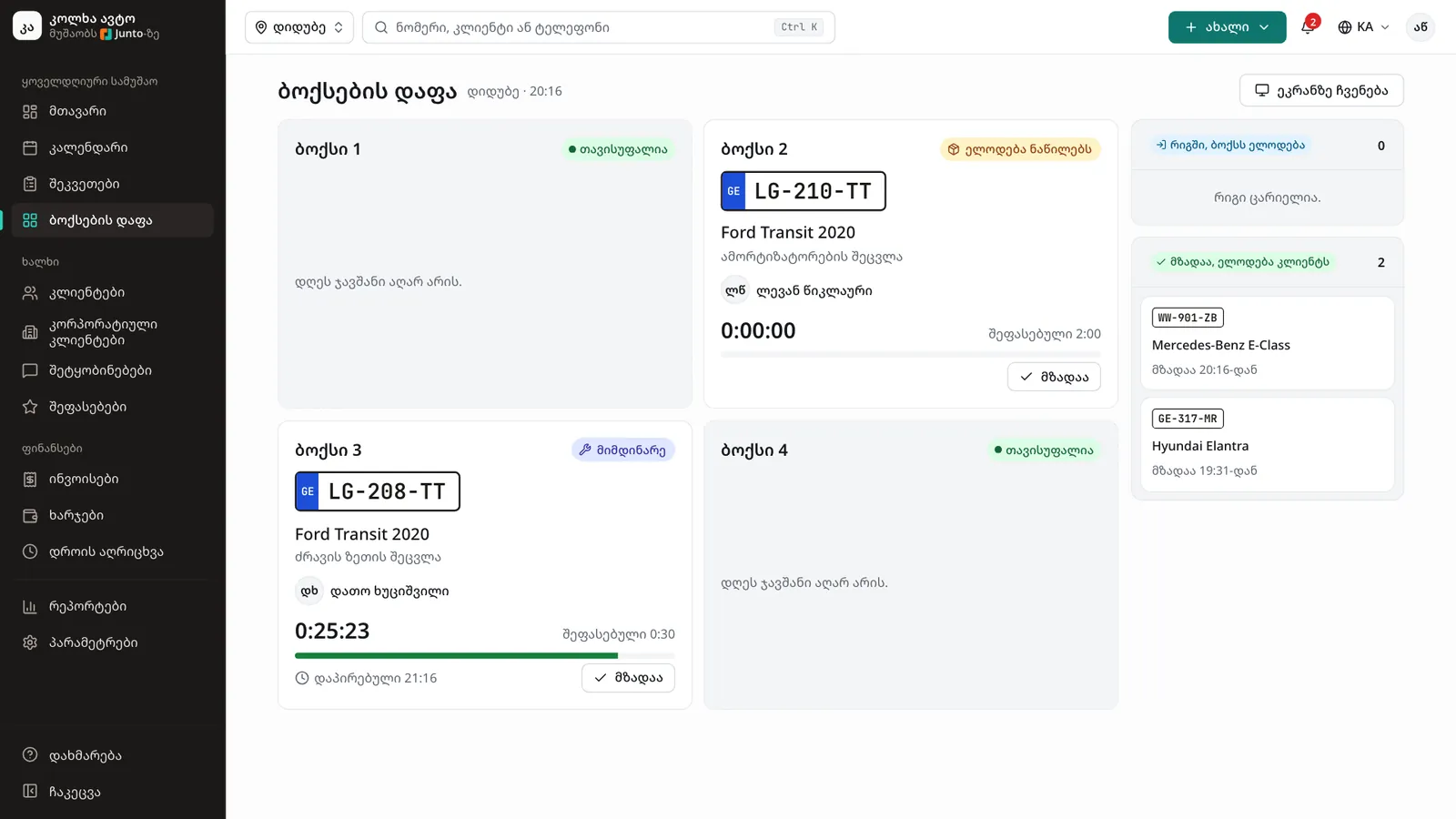
Tips
- The board updates itself every few seconds; there is no need to reload the page.
- The timer runs on the server's clock, so it reads the same on every screen and phone.
- After a status change, "Undo" in the message reverses a move made by mistake.
- Mechanics do not see the bay board. They see their own cars under "My jobs".
- For a TV in the workshop, click "Show on screen".
Related guides
- The workshop screenHow to show the bay board on a workshop TV in large type that updates by itself.
- Assigning a bay and a mechanicHow to give a work order a bay, a mechanic and a promised time in one dialog.
- Handing the car backHow to mark a car ready, take payment and hand it back to the customer, or leave it as a debt.
- Labour and parts on a work orderHow to add labour and parts to a work order with a price, a cost and, when needed, the customer's approval.
- Checking a car inHow to check a car into the shop: mileage, fuel, photos, damage, the complaint and the customer's signature.
- The Junto apps for car owners and mechanicsWhat the car owner app does (booking, order status, approval, payment, garage) and what the mechanic app does (jobs, timer, check-in, hours).