Workshop6 steps
Assigning a bay and a mechanic
A checked-in car starts in the queue. Once you give it a bay and a mechanic, the mechanic sees the job in their list and the car appears in its place on the bay board. The promised time helps you see in time which car is running late.
- Owner
- Manager
- Receptionist
Steps
Step 1: Open the work order
In the menu choose "Work orders" and open the car. The top card shows "Place" (branch and bay, or "In queue") and "Mechanic".
Step 2: Click "Bay and mechanic"
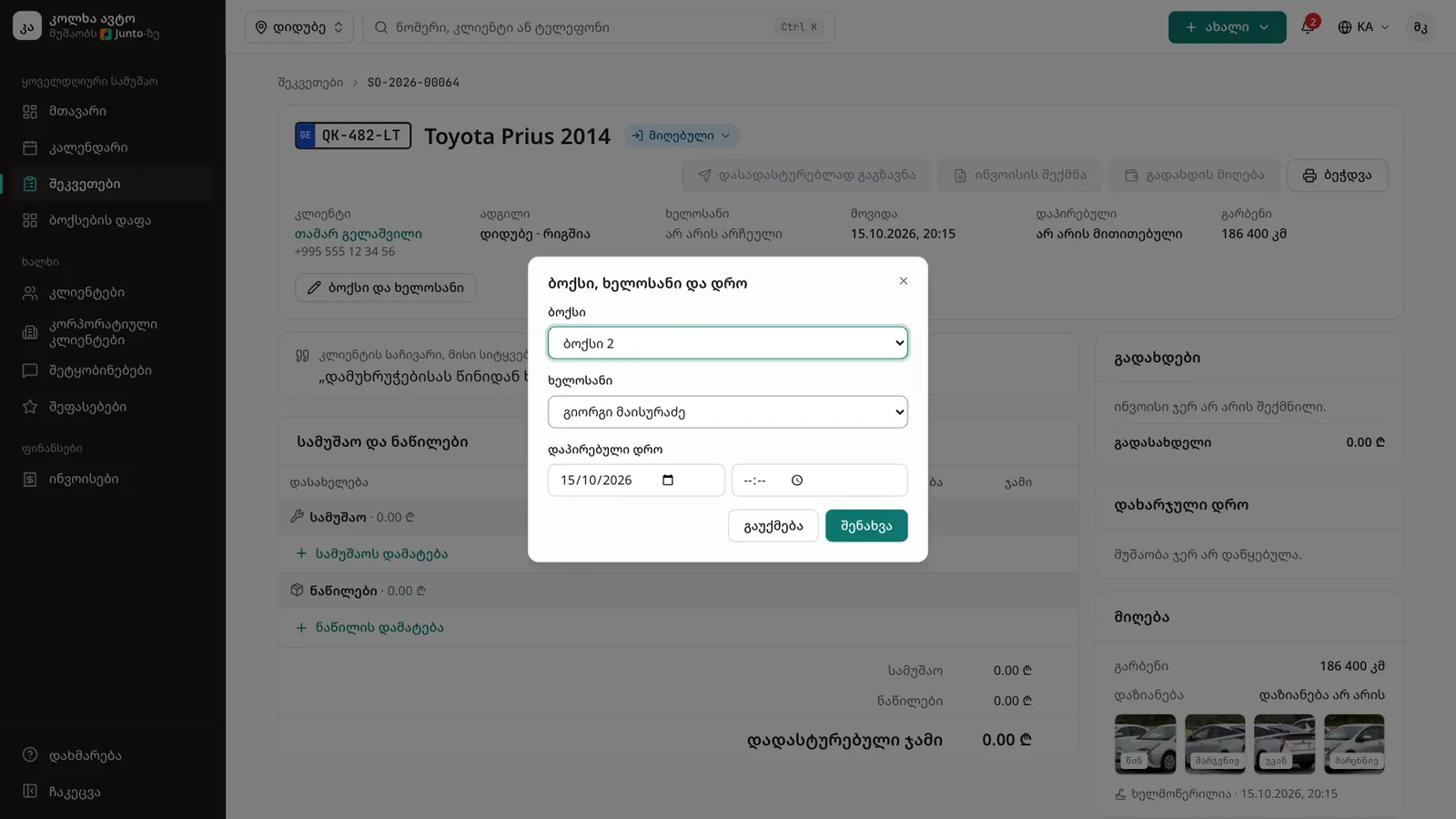
The "Bay and mechanic" button is below the top card. The "Bay, mechanic and time" dialog opens.
Step 3: Choose a bay
In the "Bay" field choose one of this branch's bays. If the car is still waiting for a bay, choose "In queue (no bay)".
Step 4: Choose a mechanic
The "Mechanic" field lists the mechanics of this branch. To take the mechanic off, choose "Not chosen".
Step 5: Set the promised time
In "Promised time" pick the day and hour you promised the car to the customer. If that time passes and the car is not ready, the order and the board show "Late".
Step 6: Save
Click "Save". The order's history records "Assignment changed" and the mechanic finds the car under "My jobs". If they use the Junto mechanic app on their phone, they also get a notification.
Tips
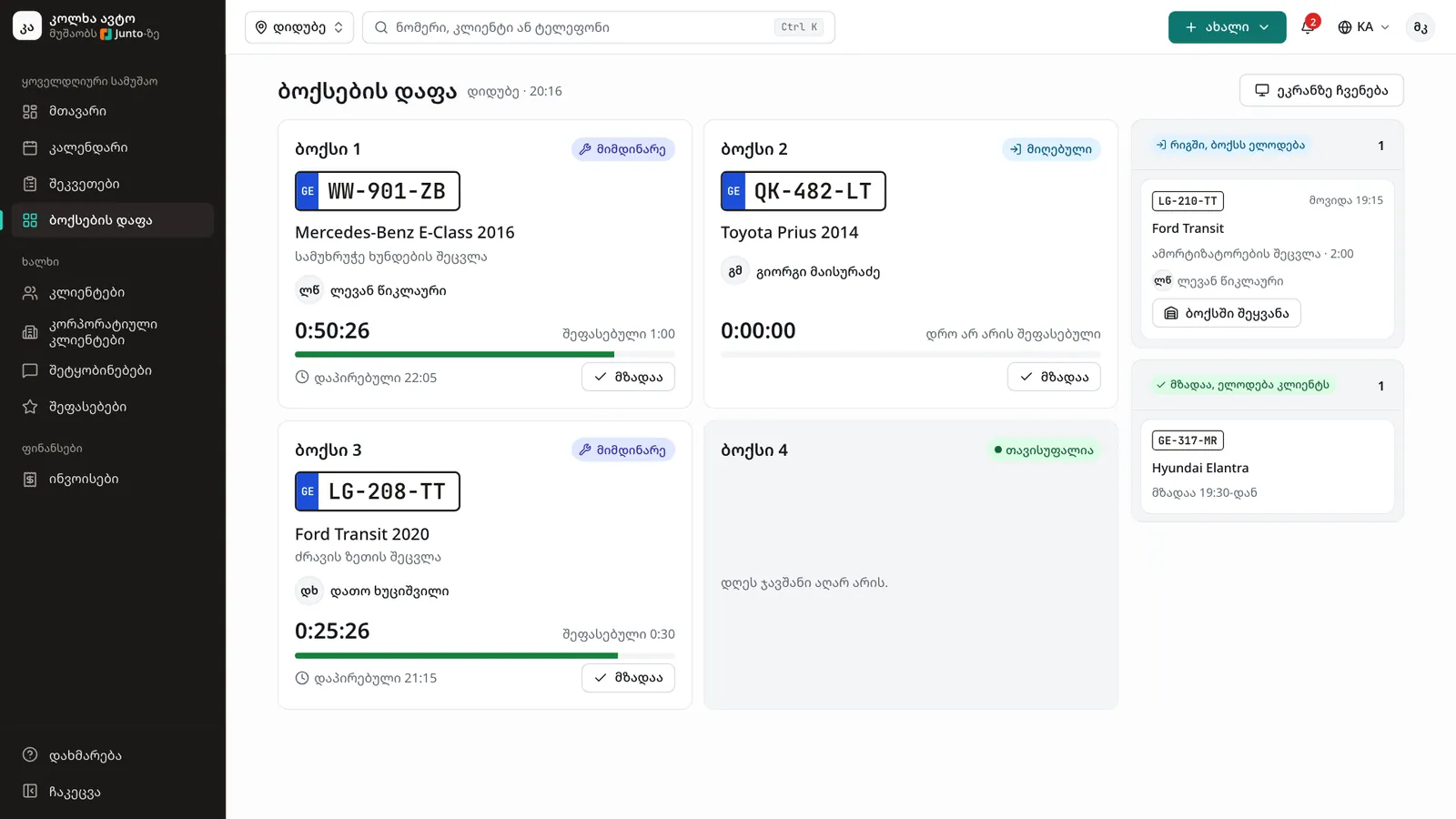
- Faster: on the "Bay board", click "Move into a bay" on a queued car and pick a free bay.
- If two cars are given the same bay, the board shows the one being worked on in the bay and keeps the other in the queue.
- The list of bays and their names is changed in the branch settings.
Related guides
- The bay boardHow to follow the workshop on one screen: who is in which bay, how long they have been working and which car is ready.
- Labour and parts on a work orderHow to add labour and parts to a work order with a price, a cost and, when needed, the customer's approval.
- Checking a car inHow to check a car into the shop: mileage, fuel, photos, damage, the complaint and the customer's signature.
- The workshop screenHow to show the bay board on a workshop TV in large type that updates by itself.
- The Junto apps for car owners and mechanicsWhat the car owner app does (booking, order status, approval, payment, garage) and what the mechanic app does (jobs, timer, check-in, hours).