Bookings and check-in8 steps
A new appointment in the calendar
When a customer calls, you book them in one window: find or add the customer, pick the car, the services and a free time. Junto checks that the bay and the mechanic are free and confirms the visit to the customer by SMS.
- Owner
- Manager
- Receptionist
Steps
Step 1: Open the new appointment window
In the top bar, click "New" and choose "Appointment". On the "Calendar" page, the "New appointment" button or a click on an empty slot next to the bay and time you want opens the same window.
Step 2: Find or add the customer
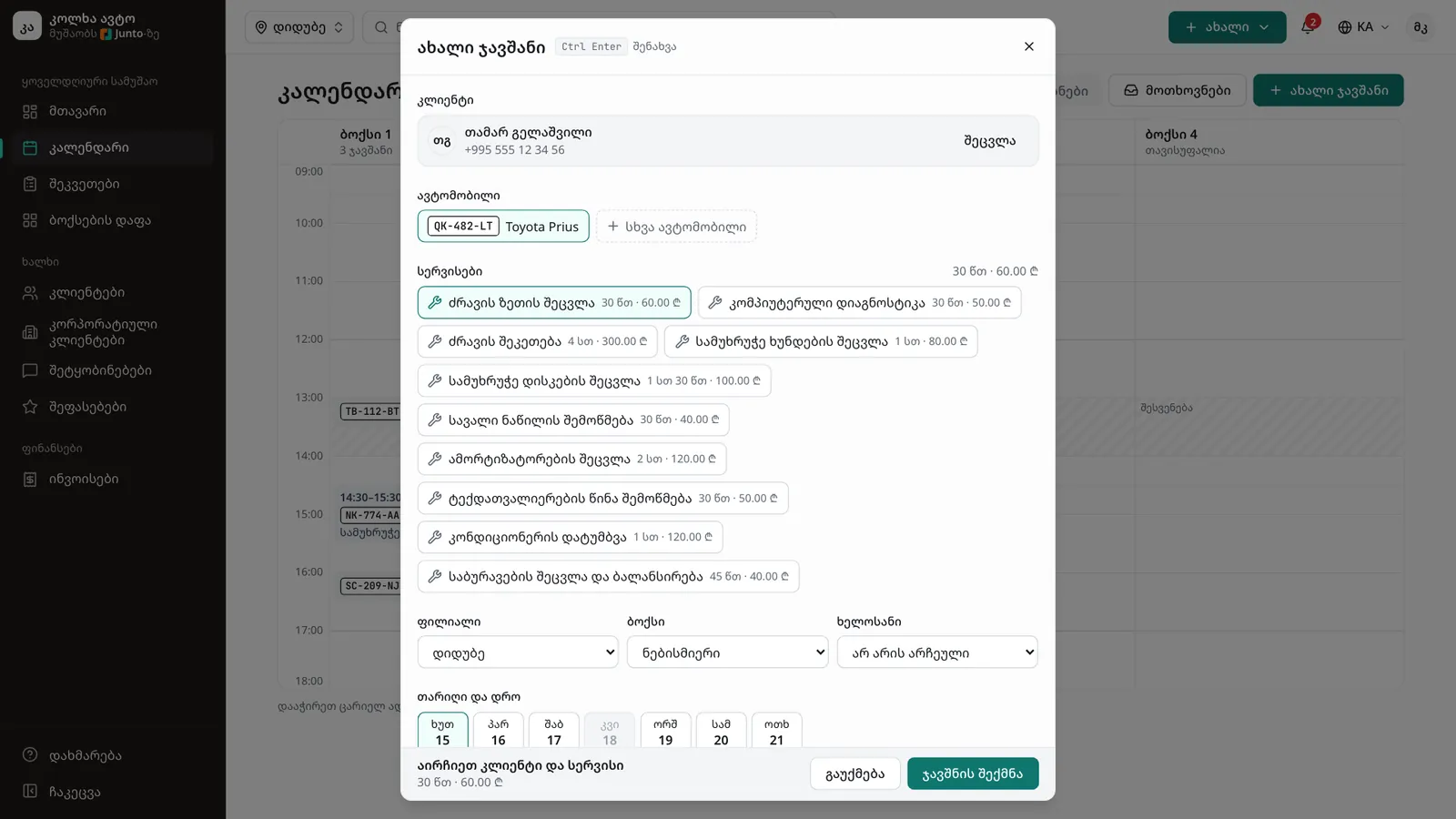
In the "Customer" field, type a name, phone number or plate and pick from the list. For a new customer, choose "New customer “…”" and fill in "Full name" and "Phone".
Step 3: Pick the vehicle
Under "Vehicle", pick the customer's car. For another car, click "Another vehicle" and enter the "Plate", "Make", "Model" and "Year".
Step 4: Choose the services
Under "Services", tick one or more services. The total length and price of the visit show above them.
Step 5: Choose the branch, bay and mechanic
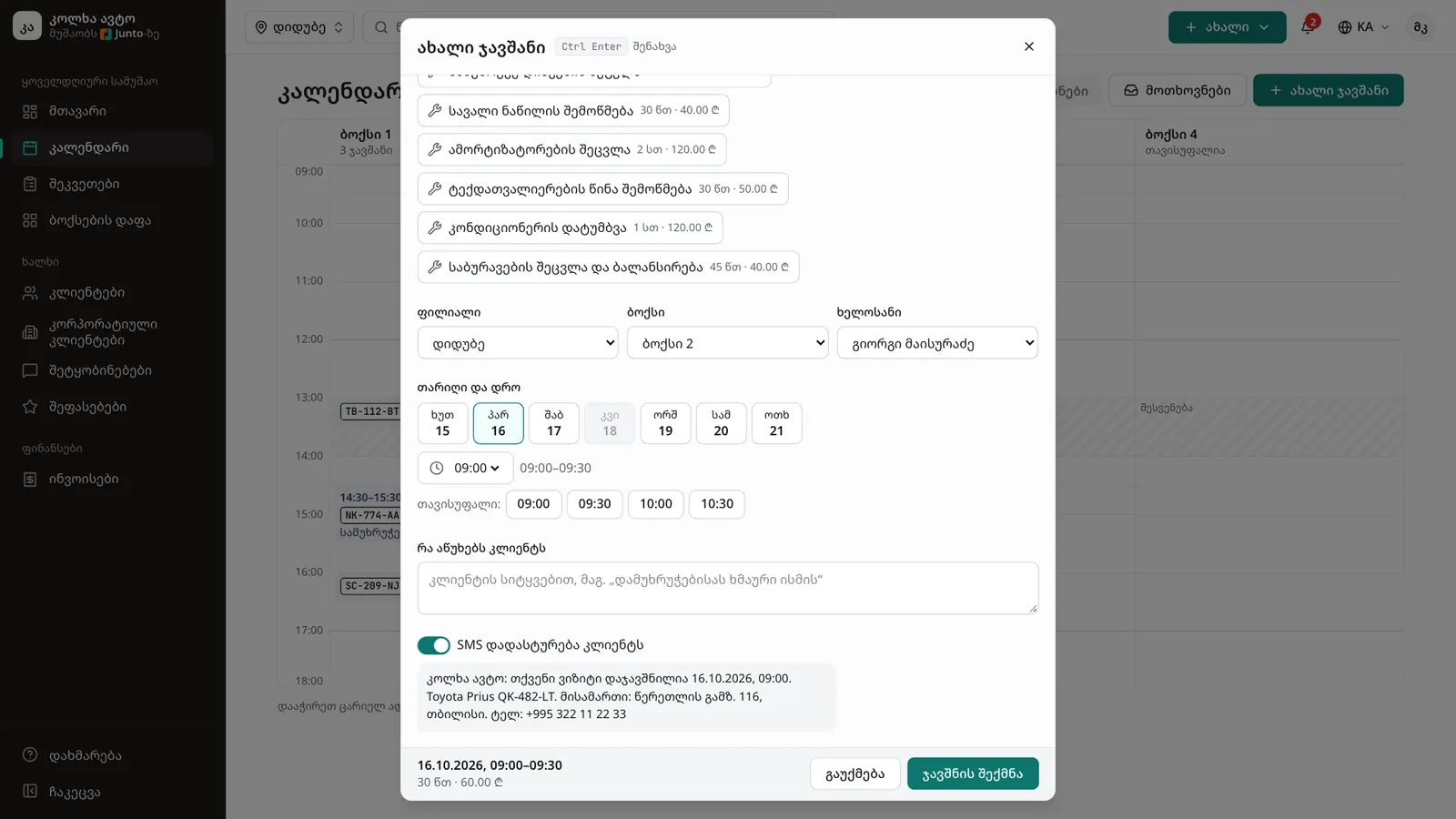
If needed, choose the "Branch", "Bay" and "Mechanic". Leave the bay on "Any free bay" and Junto picks one; the mechanic can also be set later.
Step 6: Pick the date and time
Under "Date and time", pick a day and a time, or click one of the buttons after "Free:". If the time is taken, "This time is taken" appears with other free times, bays or mechanics.
Step 7: Note the problem and check the SMS
In "What the customer says", write the customer's own words. "SMS confirmation to the customer" is on, and the text the customer will get shows below it. Without a mobile number no SMS can be sent.
Step 8: Create the appointment
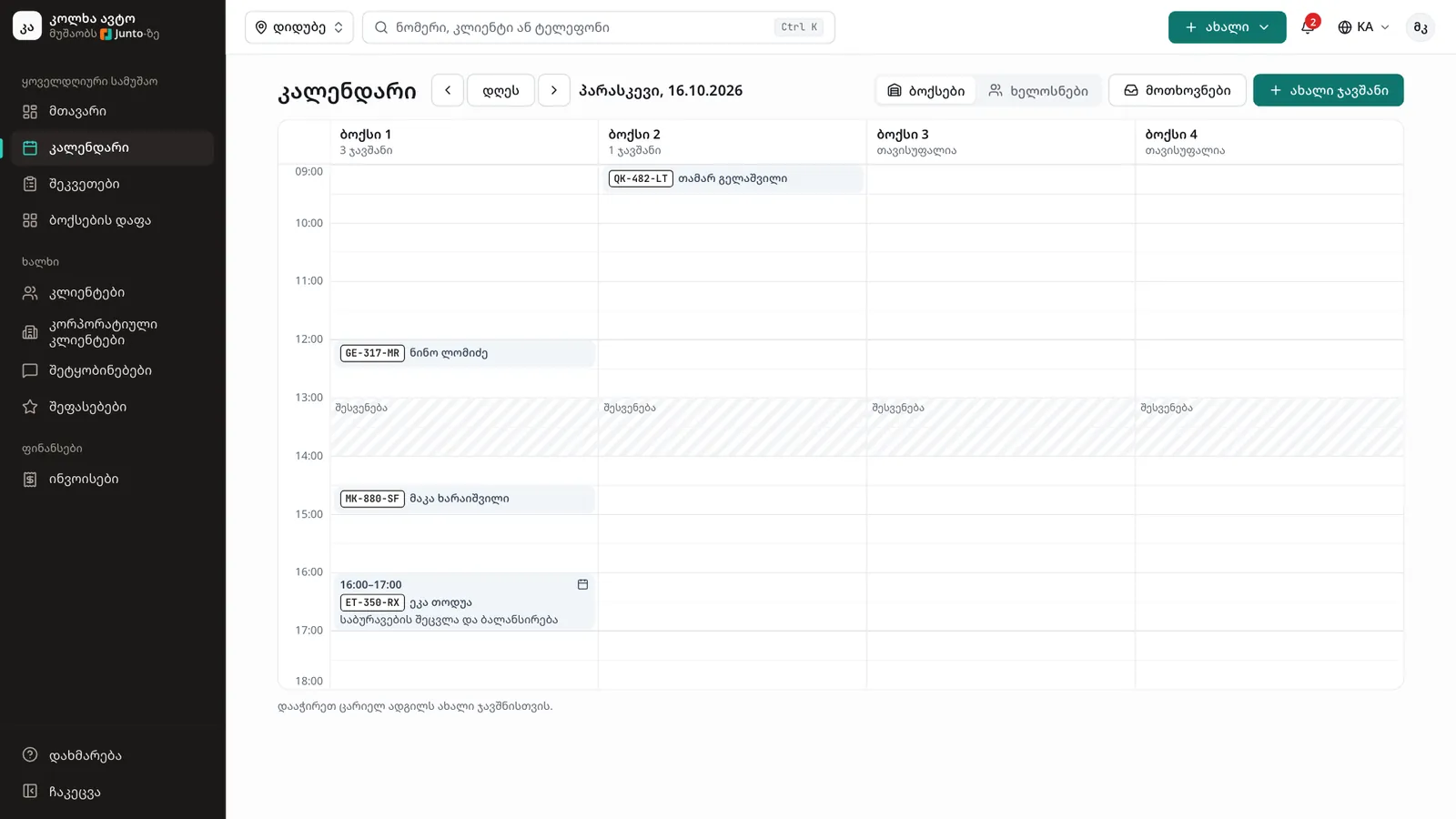
Click "Create appointment" (or press Ctrl + Enter). The appointment shows in the calendar at once and the customer gets the SMS.
Tips
- The "New appointment" button on a customer's or a vehicle's page opens the window with that customer already chosen.
- Click an appointment in the calendar to see its details: from there you can "Reschedule", "Cancel appointment" or, when the customer arrives, "Check in the vehicle".
- The "Bays" and "Mechanics" buttons at the top of the calendar show the day by bay or by mechanic.
Related guides
- A new customer and their carHow to add a new customer and their first vehicle in one window, for example for a walk-in without a booking.
- Checking a car inHow to check a car into the shop: mileage, fuel, photos, damage, the complaint and the customer's signature.
- Online booking from your shop's pageHow a customer books a visit on your shop's page in five steps, and where your team sees the booking.
- Branch: opening hours, address and mapHow to set a branch's working hours, address, phone, place on the map, bays and closed days.