Money7 steps
Reports and the profit report
Reports show how the business is doing over more than a single day: what came in, which services sell, who worked how much and what was left as profit. Every figure counts issued invoices. You can download any table as a CSV file and open it in Excel.
- Owner
- Manager
Steps
Step 1: Open the reports
In the left menu choose "Reports". At the top there are two tabs: "Reports" and "Profit". If you have several branches, the figures follow the branch chosen in the top bar; "All branches" shows the whole shop.
Step 2: Choose a period
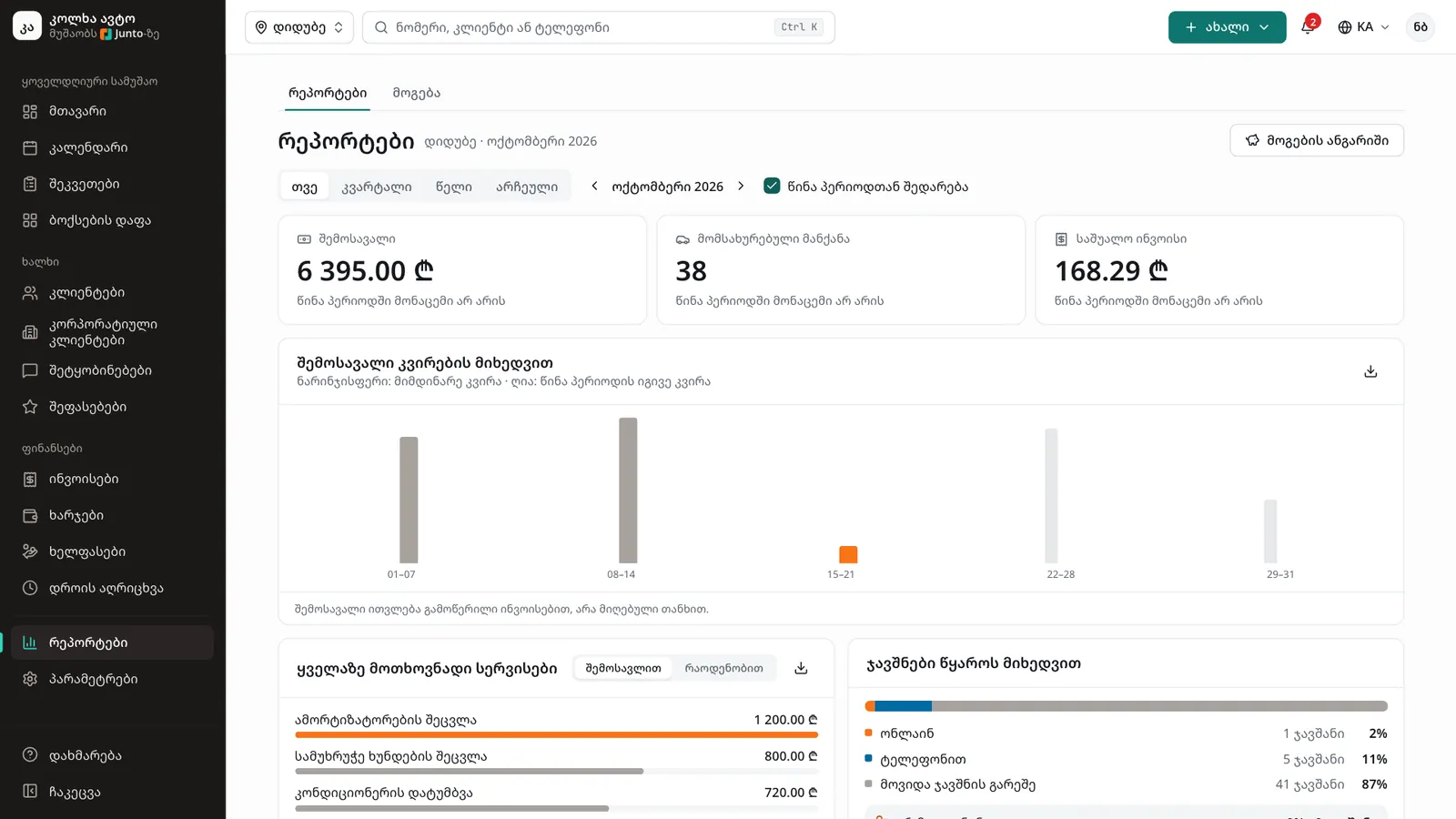
Choose "Month", "Quarter", "Year" or "Custom" and use the arrows to move to the previous or next period. "Custom" lets you set the start and end yourself. Tick "Compare with the previous period" to see the change next to every figure.
Step 3: Read the main figures
The cards at the top show "Revenue", "Cars serviced" and "Average invoice". Below them the chart shows revenue by day, week or month. Point at a bar to see the exact amount.
Step 4: Look at services, bookings and mechanics
Sort "Most requested services" "By revenue" or "By count". "Bookings by source" shows how many bookings came online, by phone and without a booking, and how many customers did not show up. "Mechanic results" shows jobs, labour revenue and hours, actual against planned.
Step 5: Go to the profit report
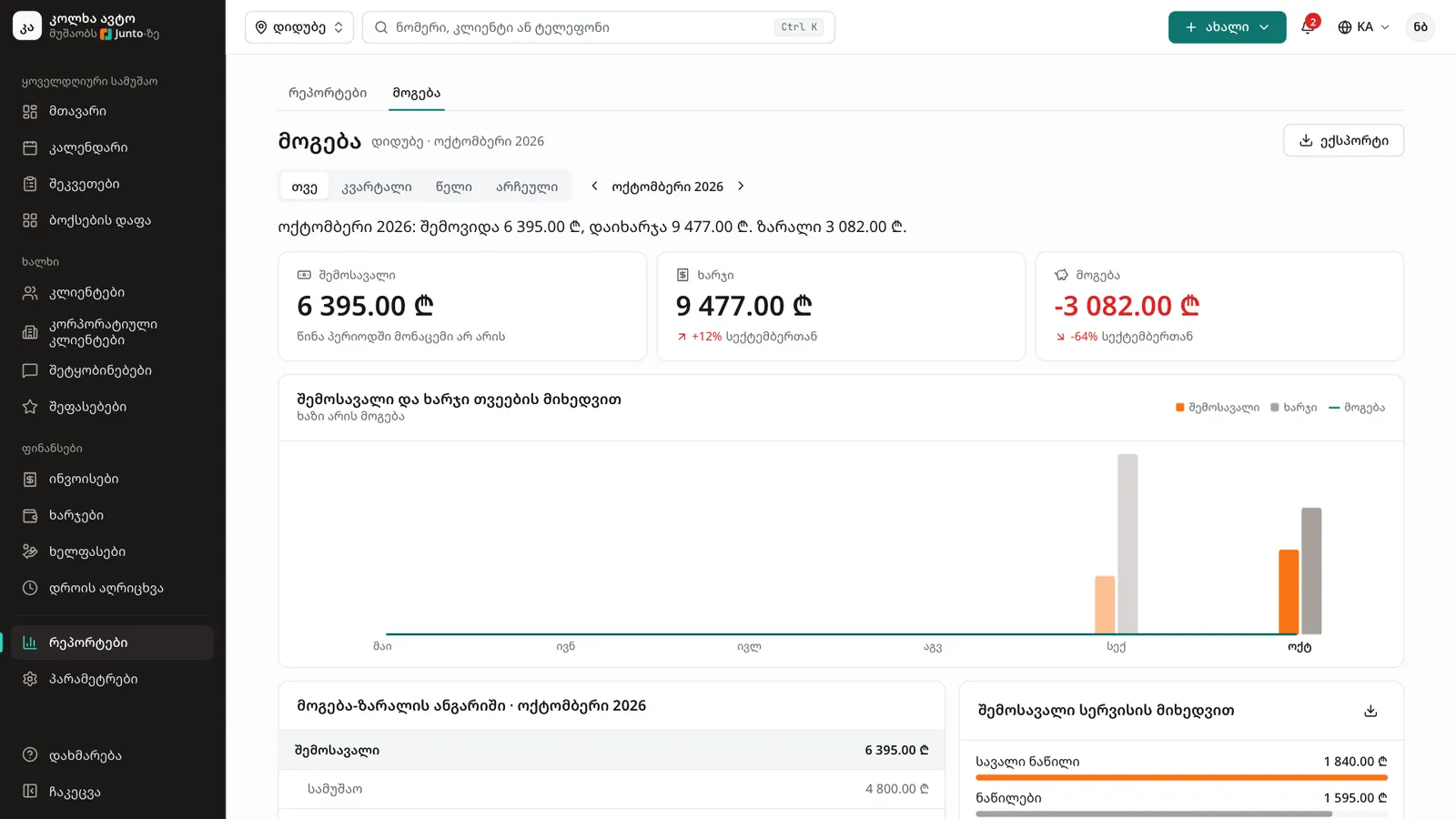
Click the "Profit report" button or the "Profit" tab. The period stays the same. The cards show revenue, cost of parts and profit, and if the expenses module is on, costs and net profit too.
Step 6: Read the profit and loss statement
The statement reads like this: revenue from labour and parts, minus the cost of parts, gives gross profit; then operating expenses by category are taken off, leaving net profit. Click a month in the chart to open that month's statement.
Step 7: Download a CSV file
On the profit page click "Export". On the reports page each card has a download icon in its corner that downloads that card's data. The file is a CSV and opens in Excel or Google Sheets.
Tips
- Revenue counts issued invoices, not money received. An unpaid invoice is still revenue.
- If a part line has no cost price, the profit looks higher than it is. The statement warns you how many lines are missing a cost; enter it on the work order and it shows here too.
- Receptionists do not see reports. If the menu item is missing, check that the "Reports and profit" module is on.
Related guides
- Expenses, payroll and timesheetsHow to record the shop's expenses, work out and pay salaries, and check the hours your mechanics worked.
- Invoice and taking paymentHow to create an invoice from a work order, take payment in cash, by card or by bank transfer, and print the invoice.
- Labour and parts on a work orderHow to add labour and parts to a work order with a price, a cost and, when needed, the customer's approval.
- Online booking from your shop's pageHow a customer books a visit on your shop's page in five steps, and where your team sees the booking.
- Branch: opening hours, address and mapHow to set a branch's working hours, address, phone, place on the map, bays and closed days.