Getting started8 steps
Branch: opening hours, address and map
The calendar, online booking and the junto.ge map all read the branch settings: when you are open, where you are and how many cars you can take at once. Fill in this page as soon as you sign up to Junto.
- Owner
- Manager
Steps
Step 1: Open the branch settings
In the left menu choose "Settings", then "Branches, bays and hours". If you have several branches, pick the one to change at the top.
Step 2: Set the working hours
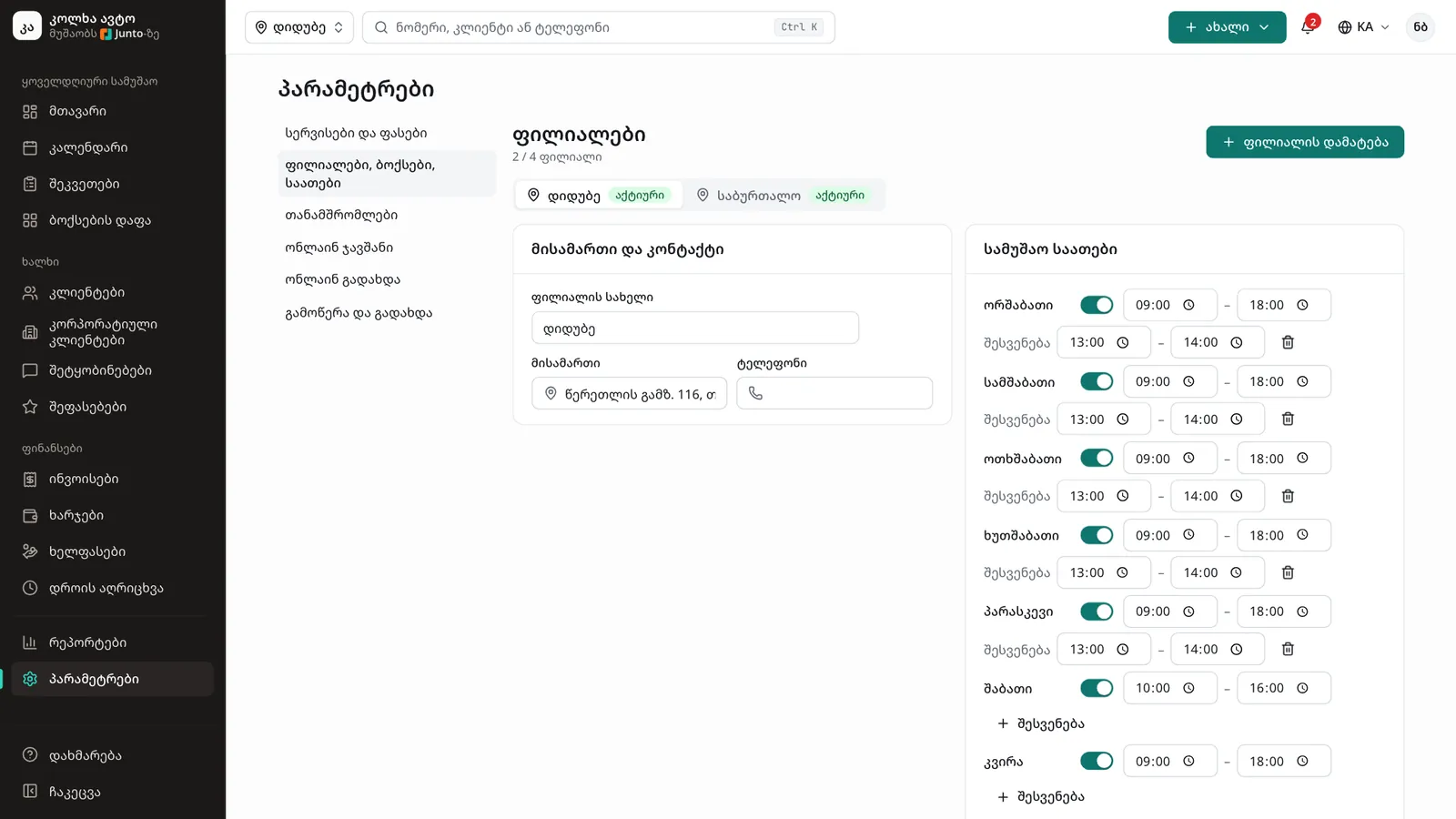
In the "Working hours" card use each day's switch to set it open or "Closed". For an open day enter the opening and closing time. If you need one, click "Add a break". Then click "Save hours".
Step 3: Enter the address and phone
In the "Address and contact" card enter the "Address" and "Phone". There is no separate button: the change saves itself when you leave the field or press Enter, and "Saved" appears.
Step 4: Put the pin on the map
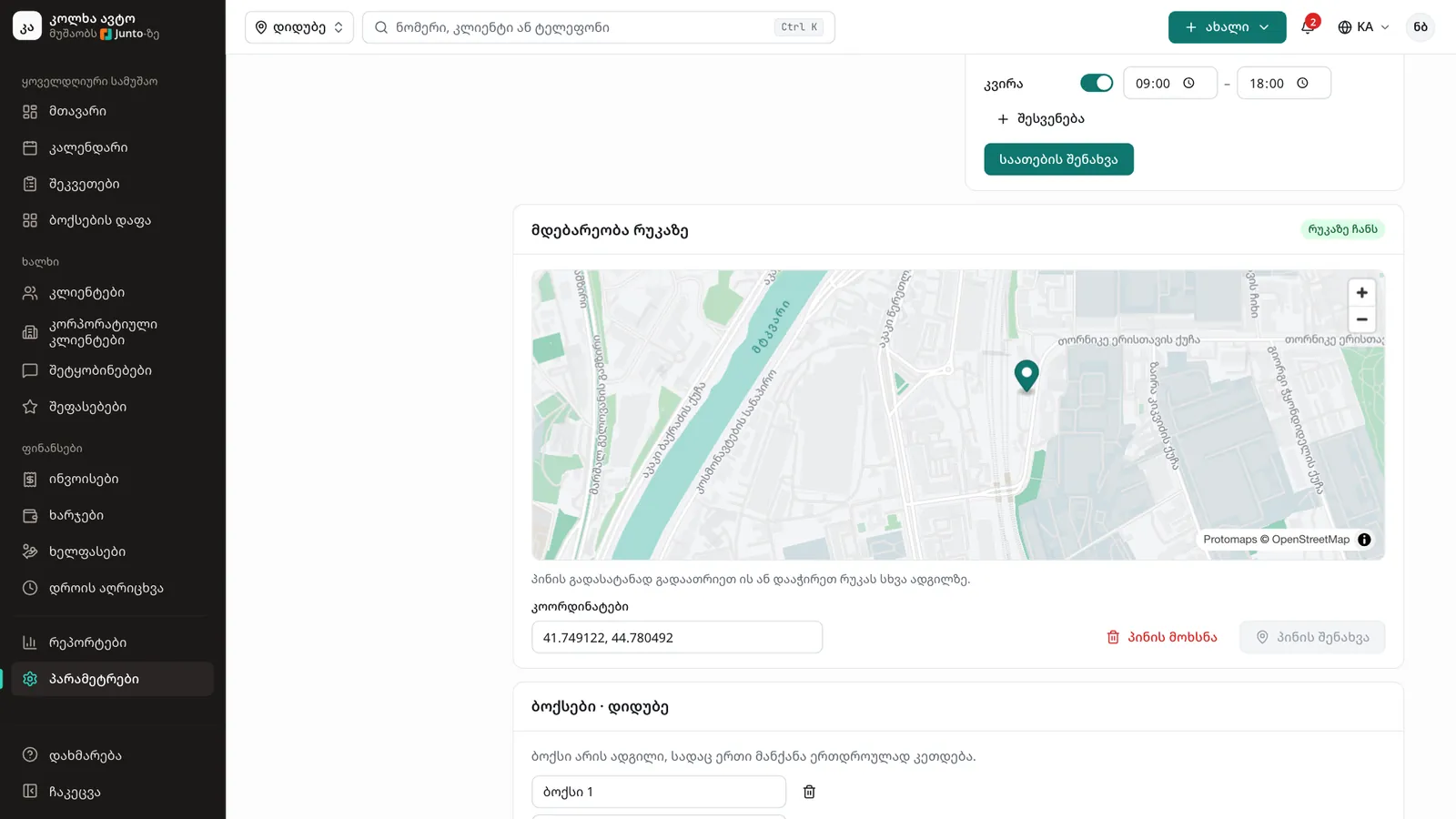
In the "Location on the map" card click the map where the branch is. To move the pin, drag it or click elsewhere. You can also paste the latitude and longitude from another map into "Coordinates". Click "Save pin".
Step 5: Add the bays
In the "Bays" card type a bay name and click "Add bay". A bay is a place where one car is worked on at a time. A name changes right in its field, and an extra bay is removed with its delete icon.
Step 6: Mark closed days
In the "Closed days" card the "Public holidays" button adds the year's official holidays in one go. For another day pick the date, "Whole day" or "Short day" with its hours, write a reason and click "Add". Customers cannot book online on these days.
Step 7: Check the online booking limit
The "Online at once, at most" card shows how many cars online bookings may bring at once. "Automatic" counts your bays and mechanics; turn it off and use the buttons to set your own number.
Step 8: Add another branch
If the "Several branches" module is on, click "Add branch" and enter the name, address, phone and number of bays. You can make a branch the "Main branch" or archive it; its history is kept.
Tips
- Without a pin the branch is not shown on the junto.ge map, though it still appears in the list of shops.
- A new branch starts with Mon–Fri 09:00–18:00 and Sat 10:00–16:00. Change these to your real hours.
- The number of bays and branches depends on your plan. When you reach the limit, a "See subscription" button appears.
Related guides
- Adding staff and rolesHow to add a staff member to Junto, give them a role and a branch, change their password or turn them off.
- Online booking and service settingsHow to choose the online booking mode and which services are offered online, and how to set service prices and durations.
- The list and map of shops on junto.geHow drivers find a shop on junto.ge/services with the list and the map, and how your shop shows up there.
- A new appointment in the calendarHow to book a customer into the calendar during a phone call: customer, car, services and time in one window.
- The bay boardHow to follow the workshop on one screen: who is in which bay, how long they have been working and which car is ready.