Settings9 steps
Online booking and service settings
Here you decide how customers book you: they pick a free time themselves, suggest a time, or just call. Service prices and durations decide how long a visit takes in the calendar and what price customers see. Every change saves at once.
- Owner
- Manager
Steps
Step 1: Open the online booking settings
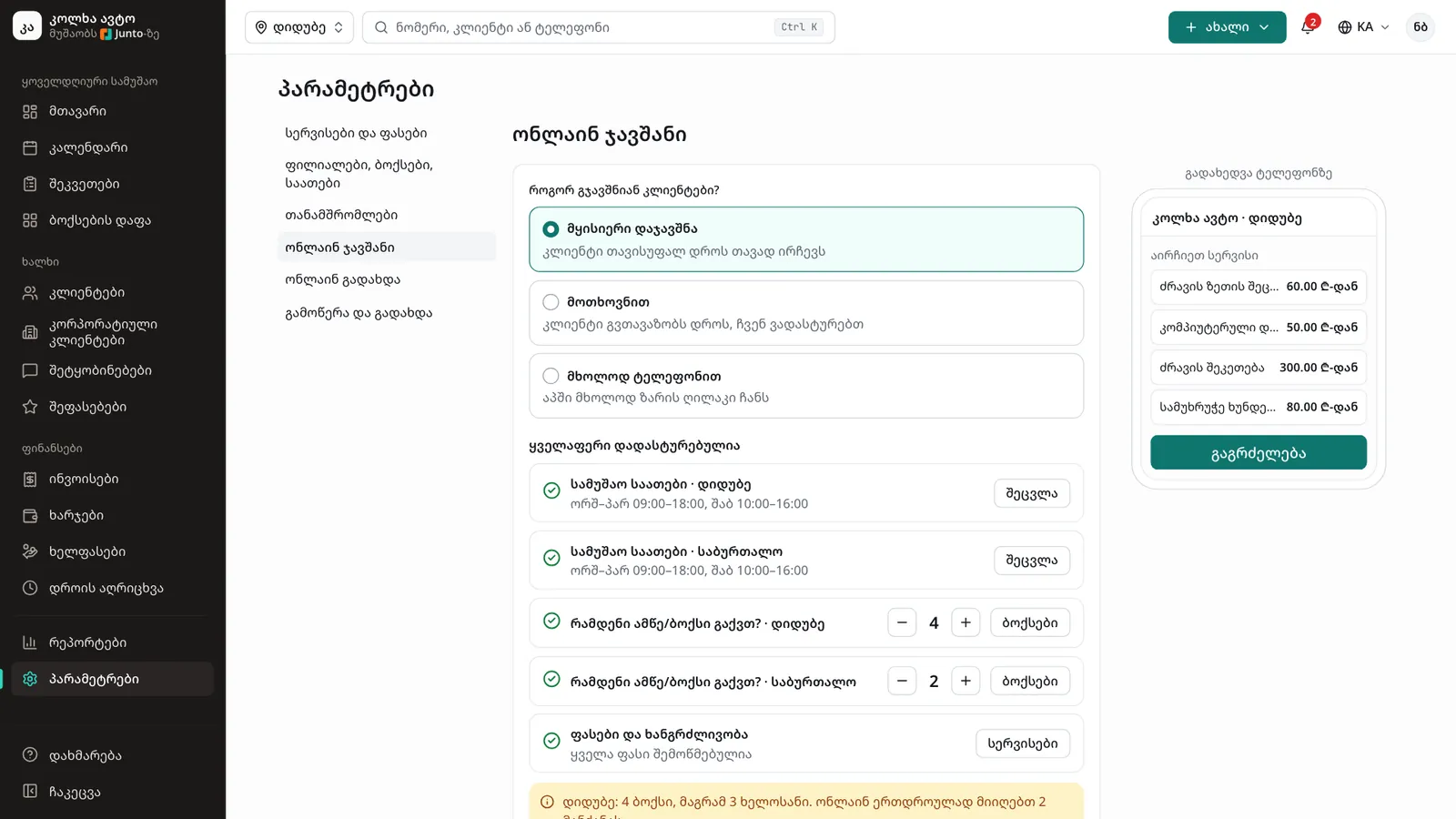
In the left menu, choose "Settings", then "Online booking". On the right, "Phone preview" shows what customers see.
Step 2: Choose the mode
Under "How do customers book you?", choose "Instant booking" (customers pick a free time themselves), "On request" (customers suggest a time, you confirm it) or "By phone only" (only a call button shows).
Step 3: Confirm your data for instant booking
Instant booking needs the "Confirm before instant booking" list: "Working hours", "How many lifts or bays do you have?" and "Prices and durations". Click "Correct" or "Prices are right" on each, then "Turn on instant booking".
Step 4: Set the capacity
In instant mode, choose the "Gap between visits" and how many bays online bookings may take; the rest stay for phone calls and walk-ins. Services left unticked under "Booked instantly" come in as requests.
Step 5: Share the page address
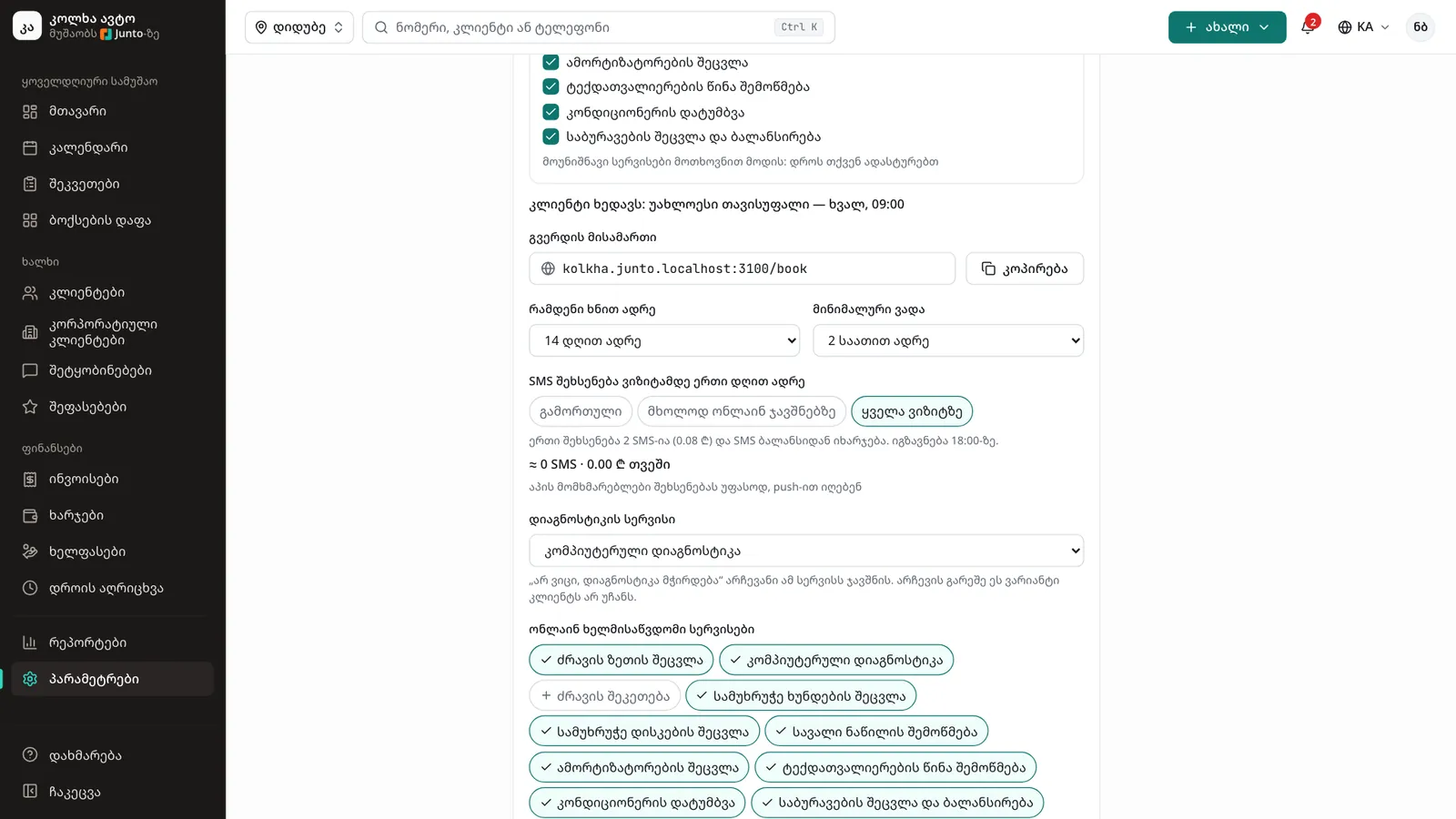
The "Page address" is your booking page, e.g. <shop>.junto.ge/book. Click "Copy" and paste it on social media, your Google listing or in an SMS.
Step 6: Booking window and reminder
"How far ahead" sets how many days ahead customers can book, and "Minimum notice" how close to the visit. "SMS reminder the day before the visit": "Off", "Online bookings only" or "Every visit".
Step 7: Choose the services offered online
The "Diagnosis service" is what "I am not sure, I need a diagnosis" books. Under "Services available online", tick the services customers can see.
Step 8: Set services and prices
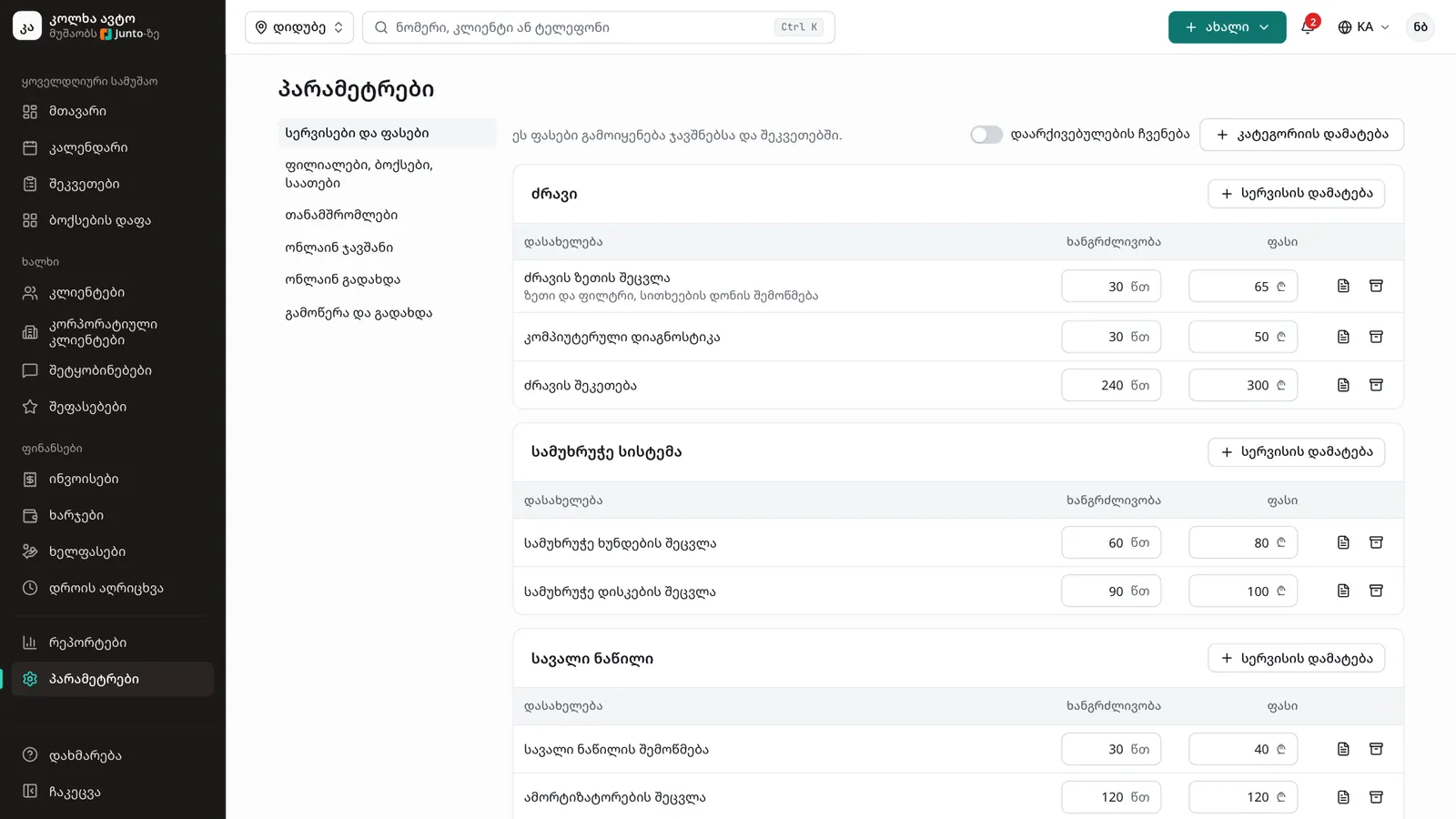
Open "Services and prices". Change the "Duration" and "Price" right in the table. For a new one, click "Add service". If the top says some services are not checked, check them and click "Prices are right".
Step 9: Add a description for car owners
The "Details for car owners" button on a service's row opens a short description in Georgian and English and the "Price type": "Fixed", "Starting price ("from")" or "After diagnosis".
Tips
- Instant online booking sells only checked services, so check the price after adding a new service.
- In "On request" mode you can turn on "SMS on each request" and set the number that gets the SMS for each new request.
- Do not delete a service you no longer offer: "Archive" hides it online and keeps it on old orders.
- Working hours, breaks and bays are changed on "Branches, bays and hours".
Related guides
- Online booking from your shop's pageHow a customer books a visit on your shop's page in five steps, and where your team sees the booking.
- Branch: opening hours, address and mapHow to set a branch's working hours, address, phone, place on the map, bays and closed days.
- The list and map of shops on junto.geHow drivers find a shop on junto.ge/services with the list and the map, and how your shop shows up there.
- A new appointment in the calendarHow to book a customer into the calendar during a phone call: customer, car, services and time in one window.