Customers8 steps
Customer and car history
The customer page brings together their vehicles, every visit, what they have spent and what they owe. The car page shows its service history, the photos taken at check-in and how the mileage has grown. So when a customer calls, you know at once what was done last and what is next.
- Owner
- Manager
- Receptionist
Steps
Step 1: Find the customer
In the left menu choose "Customers" and type a name, part of a phone number or a plate into the search box ("Name, phone or plate"). Click the customer in the list.
Step 2: The customer page
The top shows the name, the phone and a "Call" button, and below them the figures "Total spent", "Visits" and "Debt". In "Note for staff" write what to remember: it is saved automatically and the customer never sees it.
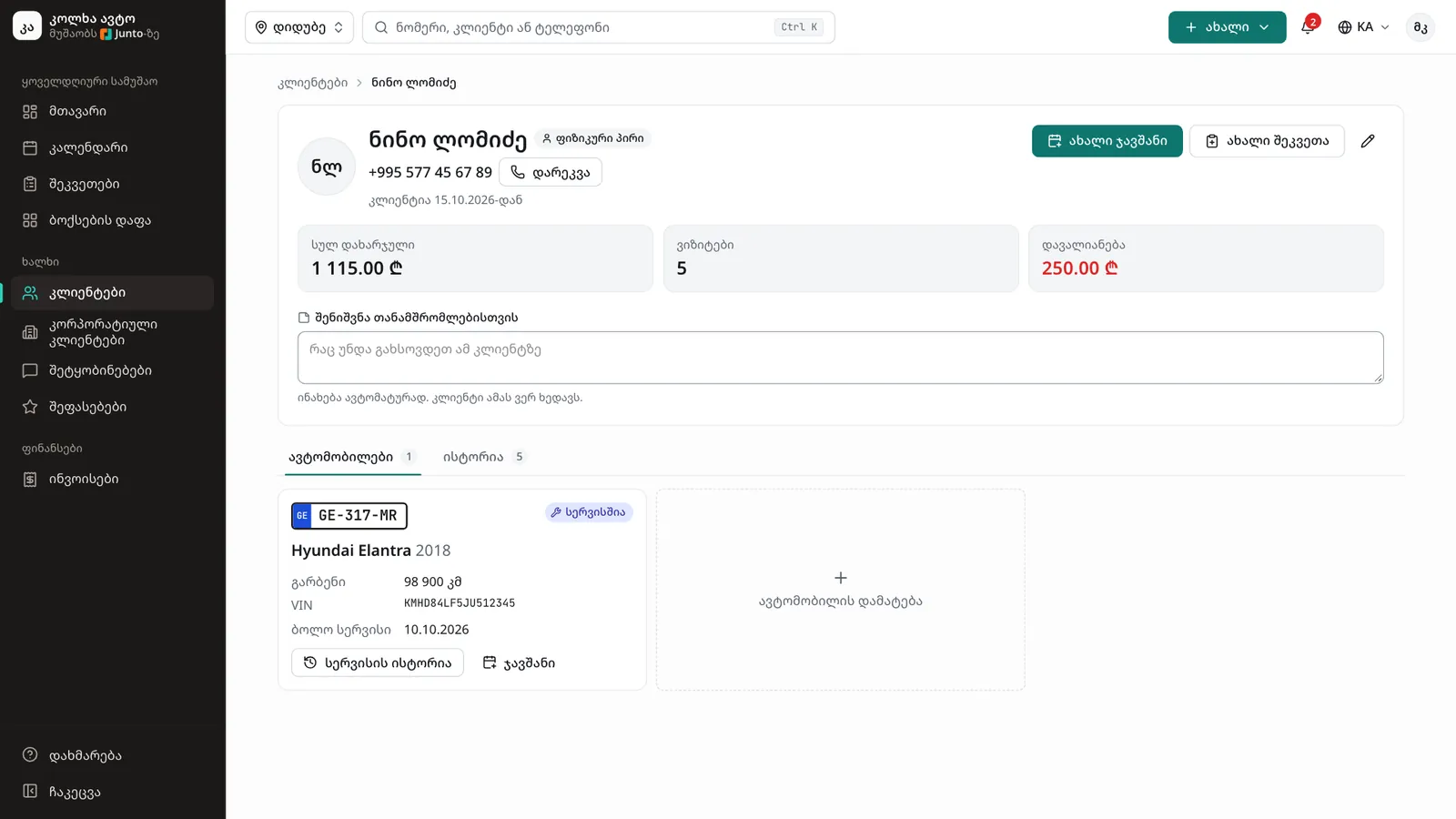
Step 3: The "History" tab
Open the "History" tab. It lists every visit of the customer: order number and date, plate, work, status and amount. Click an order number to open it.
Step 4: The "Vehicles" tab
In the "Vehicles" tab each car has a card: plate, model and year, "Mileage", VIN and "Last service". If the car is in the shop right now, it shows an "In the shop" badge. Click "Service history".
Step 5: The car's service history
On the car page the "Service history" card lists every visit by date: order number, status, what was done, mileage at check-in and the mechanic. Click an order number to open the order.
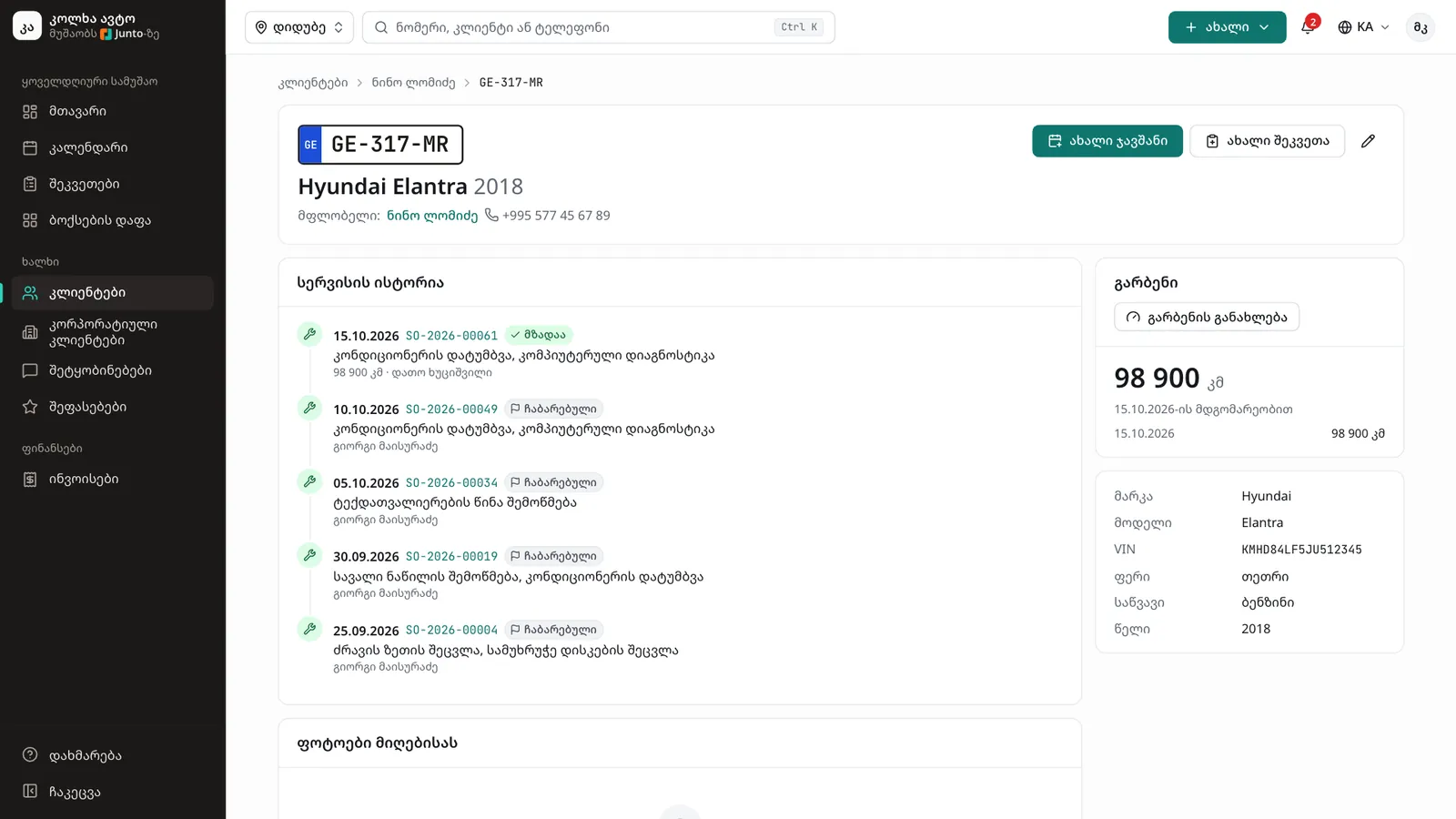
Step 6: Check-in photos
The "Check-in photos" card shows the photos from every check-in, each labelled with the side and the date. It makes it easy to compare the car with its last visit.
Step 7: Mileage
The "Mileage" card shows the latest reading, a chart of how it grew and the last readings. To add one, click "Update mileage": it cannot be below the last reading.
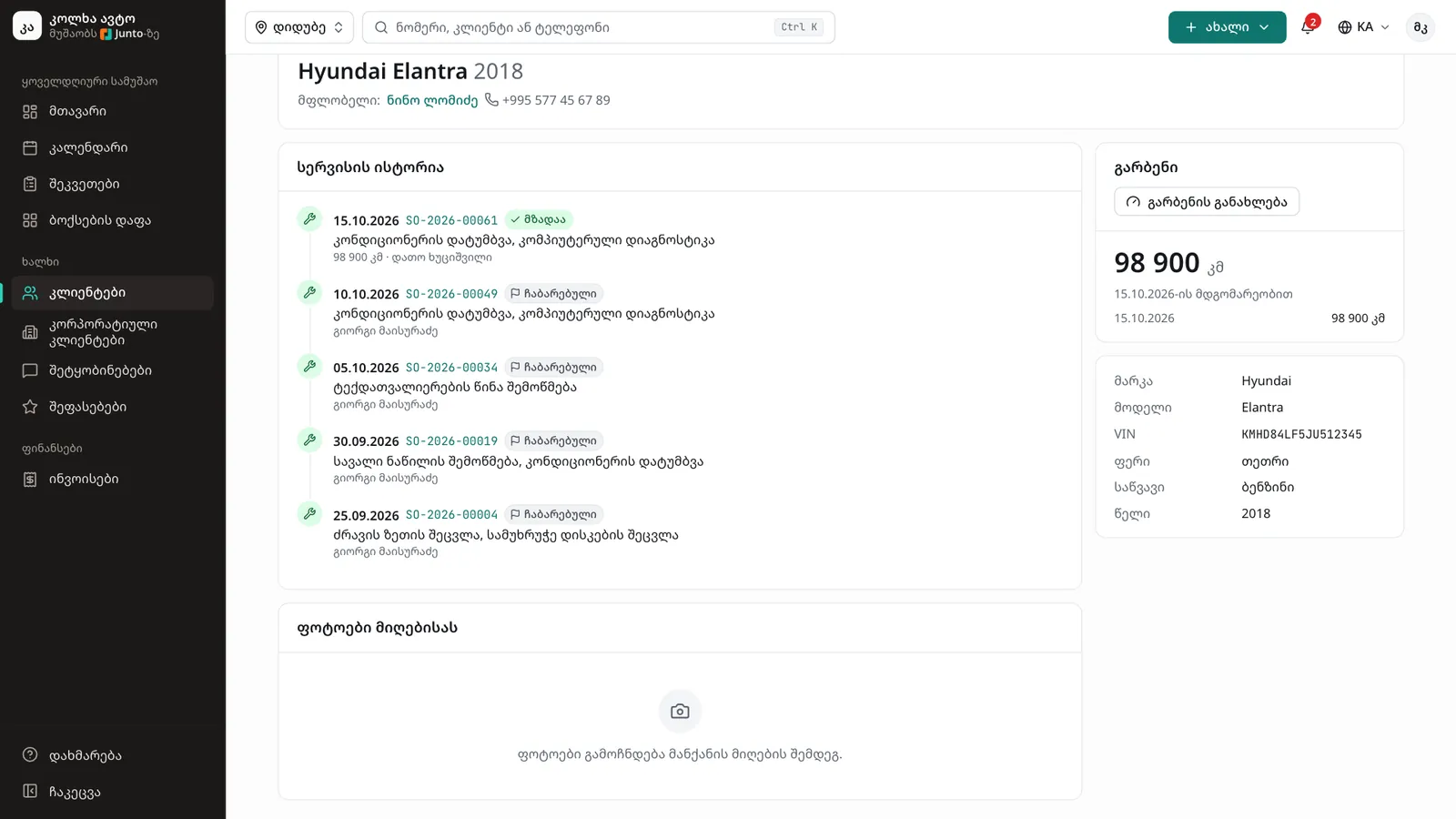
Step 8: The next visit
From the customer or car page click "New appointment" to book it in the calendar, or "New work order" to check the car in now. The customer and the car are already chosen.
Tips
- Cancelled orders do not show in the history.
- On the car page, details that came from the registration certificate are marked "From the registration certificate".
- If a customer has missed visits or cancelled at the last minute, the customer page shows it separately.
- Mechanics do not see customer pages.
Related guides
- A new customer and their carHow to add a new customer and their first vehicle in one window, for example for a walk-in without a booking.
- A new appointment in the calendarHow to book a customer into the calendar during a phone call: customer, car, services and time in one window.
- Checking a car inHow to check a car into the shop: mileage, fuel, photos, damage, the complaint and the customer's signature.
- Invoice and taking paymentHow to create an invoice from a work order, take payment in cash, by card or by bank transfer, and print the invoice.
- Reviews and repliesHow a customer rates a visit with five stars from the SMS link, and how the owner replies in public on the "Reviews" page.